Redragon M693 Review: For Gamers on a Budget

For someone getting into gaming or looking to replace the mouse that came with their computer, a budget gaming mouse seems like the way to go. Redragon’s M693 offers key features like wireless connectivity and a Pixart sensor at a competitive price.

If the Redragon M693 seems like a potential option for you, keep reading to find out more.

The Verdict
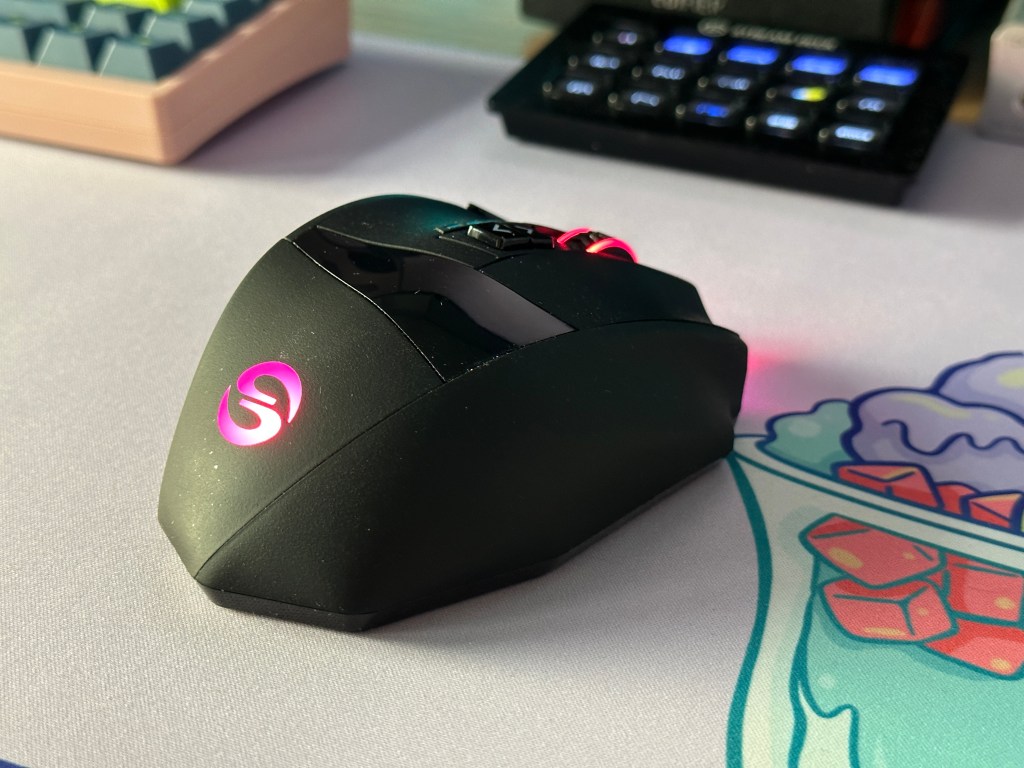
Redragon M693 mouse at desk setup

Rating: 3.5 out of 5.

The Redragon M693 is a budget mouse with a solid package. For anyone that wants a wireless gaming mouse at the sub $30 price point, the M693 is a favorite. With a 90g weight, accurate sensor, and a reasonable build, the M693 beats out a lot of the competition.

The M693 only comes with one fatal flaw, its high latency. Its switches provide higher than average latency paired with wireless connectivity that won’t compete with the response times of Razer or Logitech. However, if you want a lightweight mouse that is wireless, there is little to look at this price that can outcompete the Redragon M693.

Additionally, the mouse features RGB lighting and a software that Redragon has continued to improve over the past year. If you plan to mainly play FPS titles then a wired mouse may still be the route to go but for any other gamer or if wireless is a necessity, the Redragon M693 is a good option to consider.


Specifications

Length~126mm
~5in
Width~63mm
~2.4in
Height~39mm
~1.5in
Weight~90g
Sensor TypeOptical (100 – 8K DPI)
Polling Rate125 – 1000 Hz
Cable Length1.5m (4.9ft)

In The Box

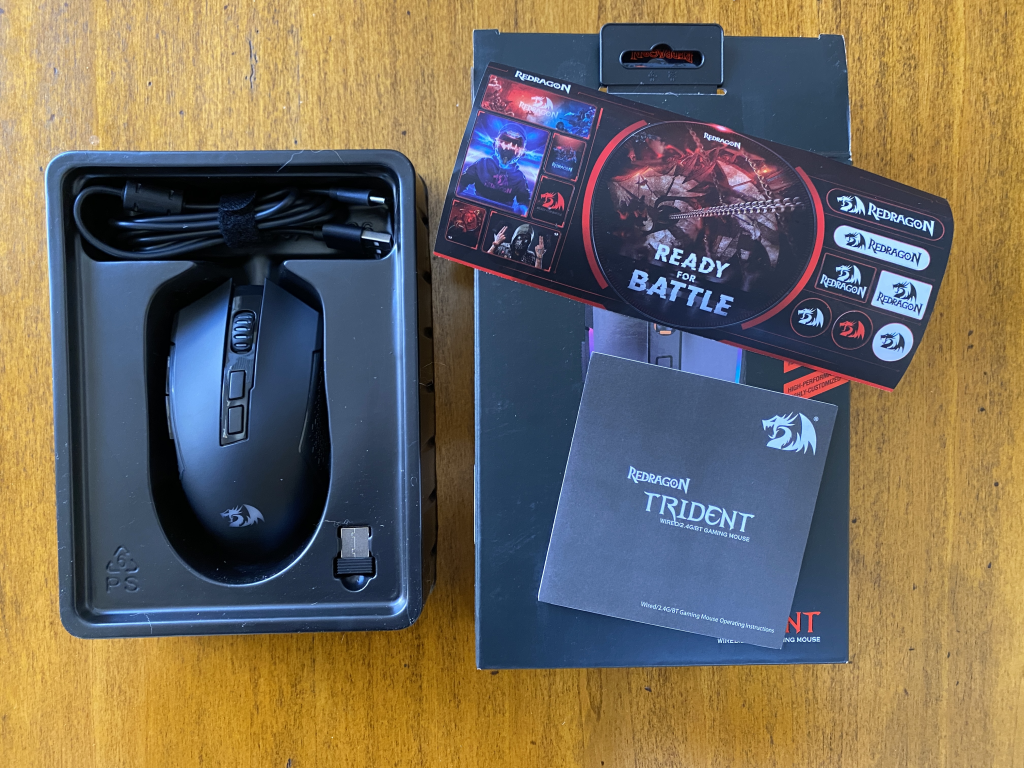
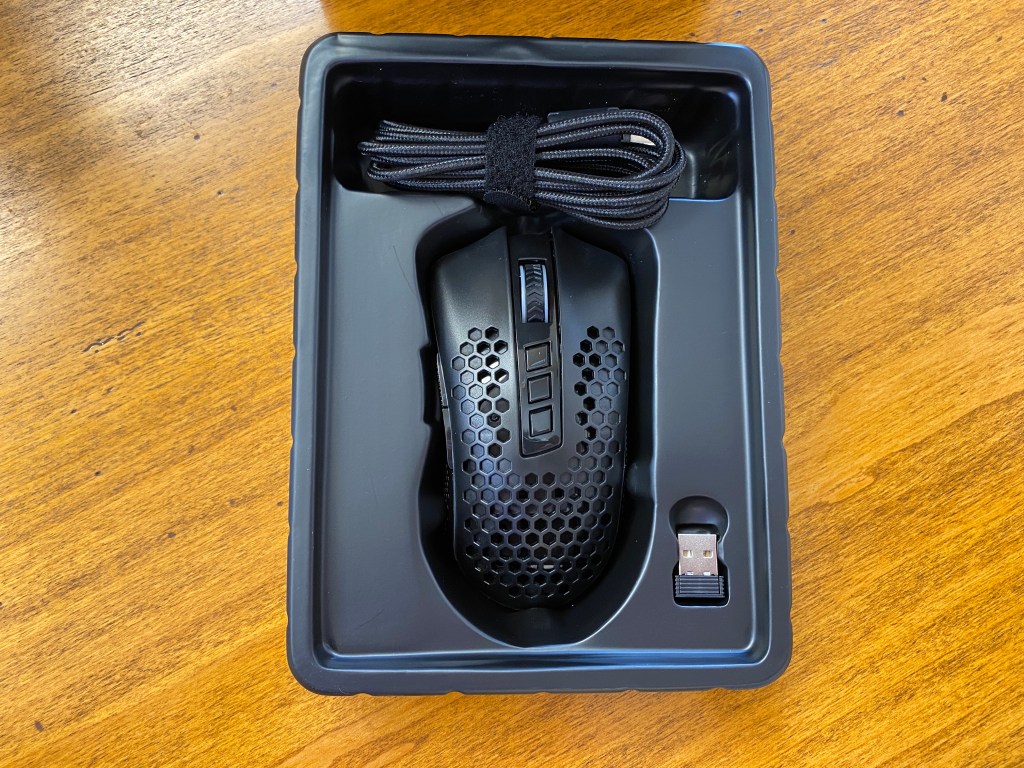
Unboxing of Redragon M693 mouse

Opening up the box, you will find the M693 with a few extras.

Manual: Explains some basic functions and legal information.

Cable: A rubberized USB-C cable that is 1.5m (4.9ft) long.

Dongle: 2.4 Ghz dongle for the wireless connection.

Stickers: A collection of some gamery images and Redragon logos.

Advertisements

Build Quality

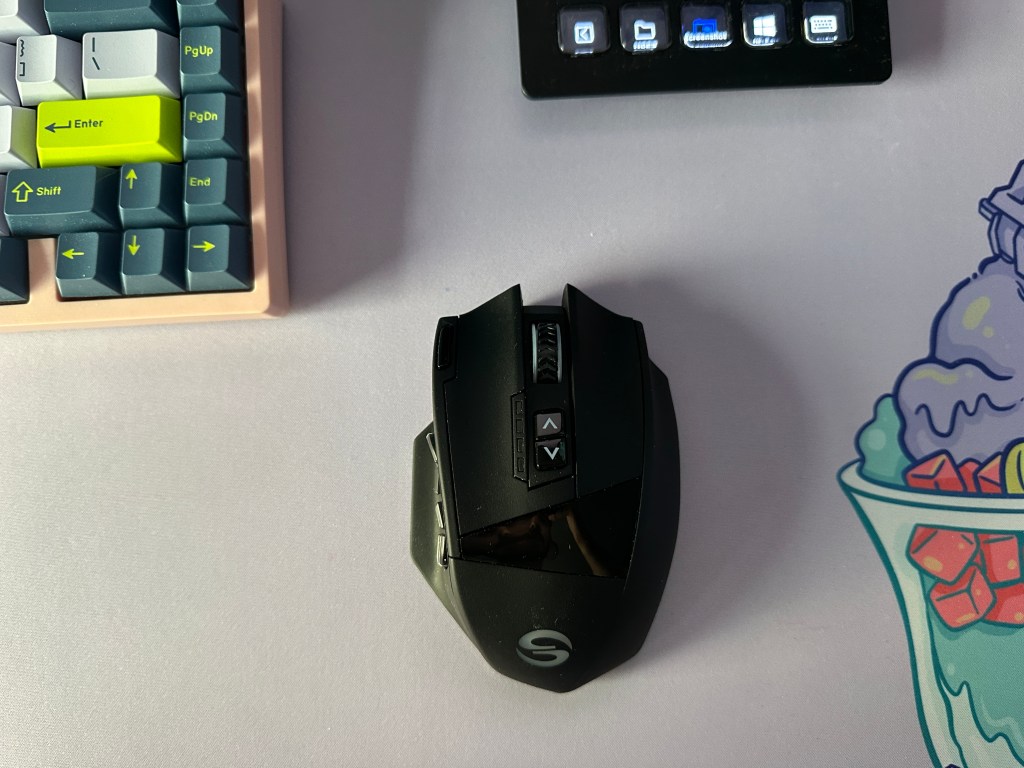
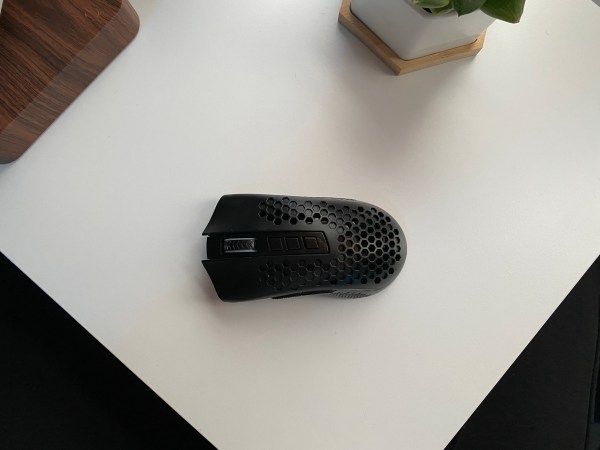
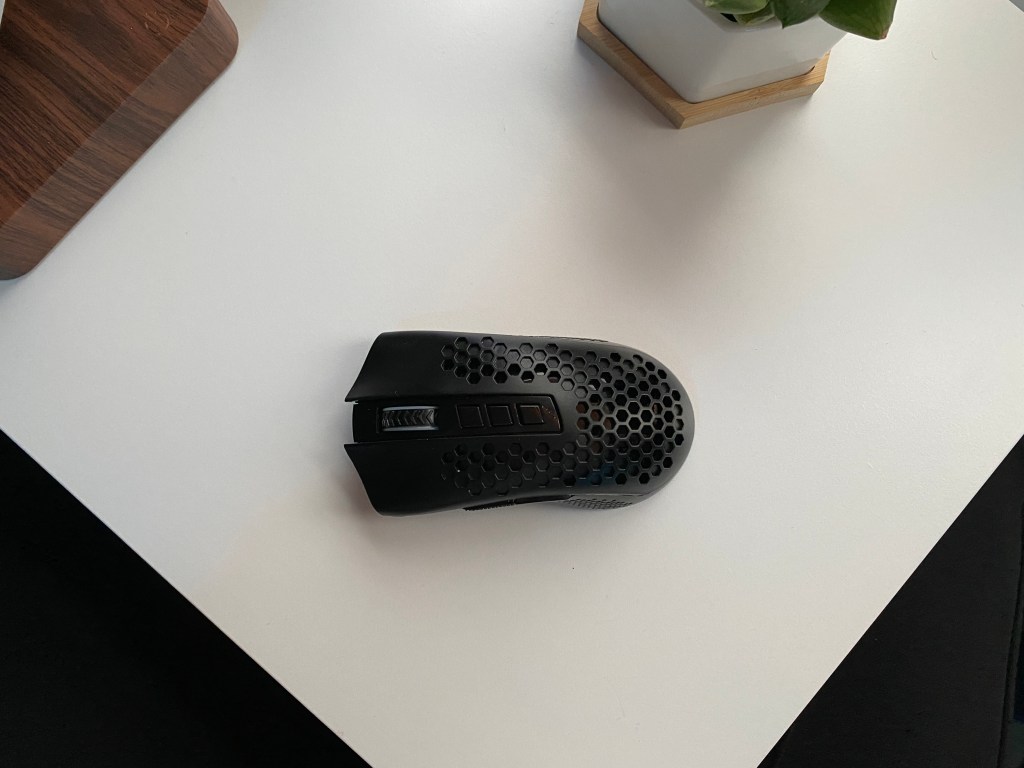
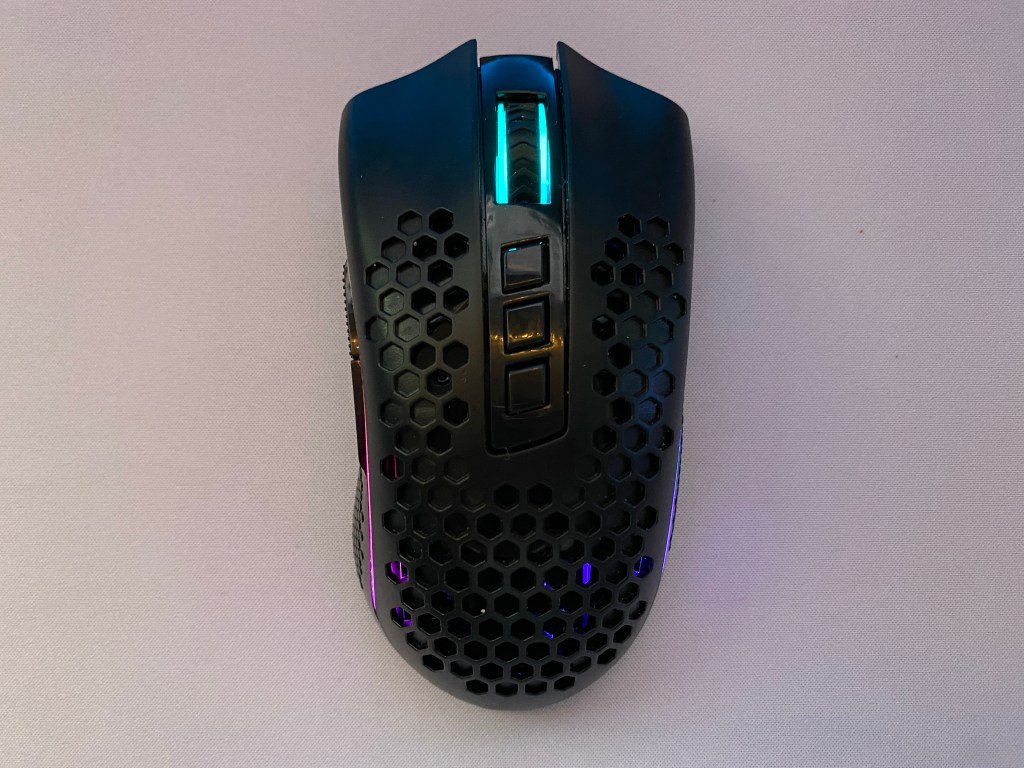
Top view of Redragon M693 mouse

Redragon’s M693 uses primarily plastic with some rubber on the scroll wheel. The mouse weighs in at 90g making it a decent option for FPS games. The mouse feels slightly rear heavy but overall pretty solid by first impression.

Two areas that are weak with the M693 are the feet and the quality of the main buttons. Most of the buttons feel pretty good but the main two feel a bit flimsy. The feet also are not as good as something I have seen on mice from big manufacturers but they are still better than ones I have seen on other gaming mice. The M693 still is good enough for quick flicks and provides an overall smooth travel.

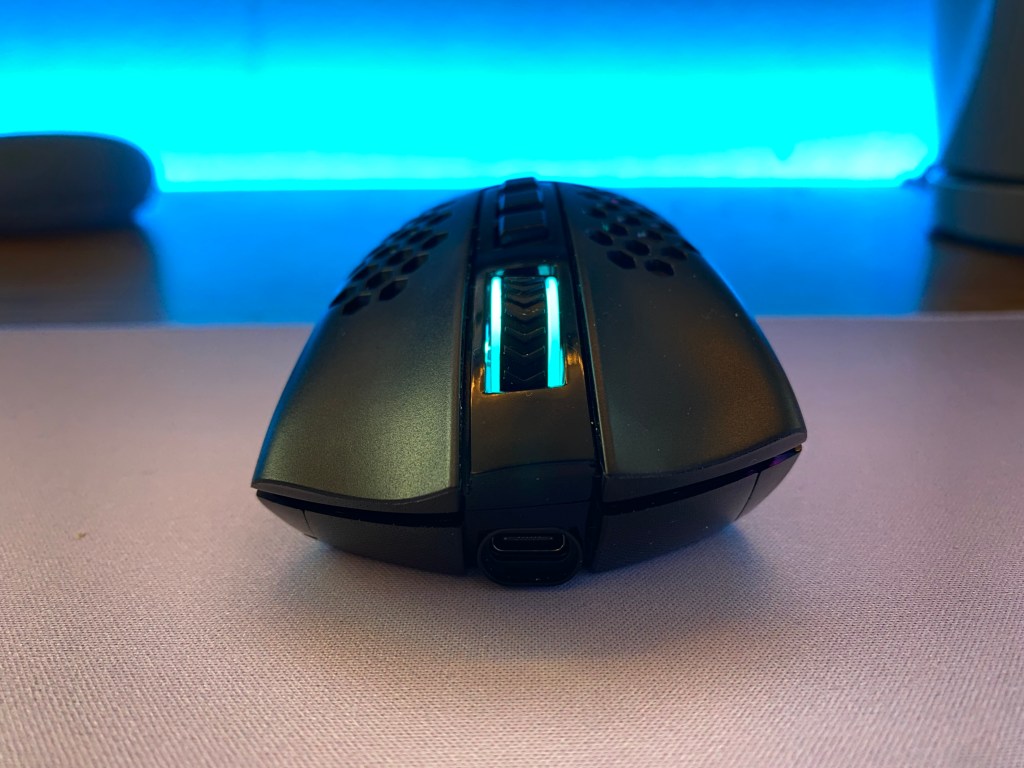
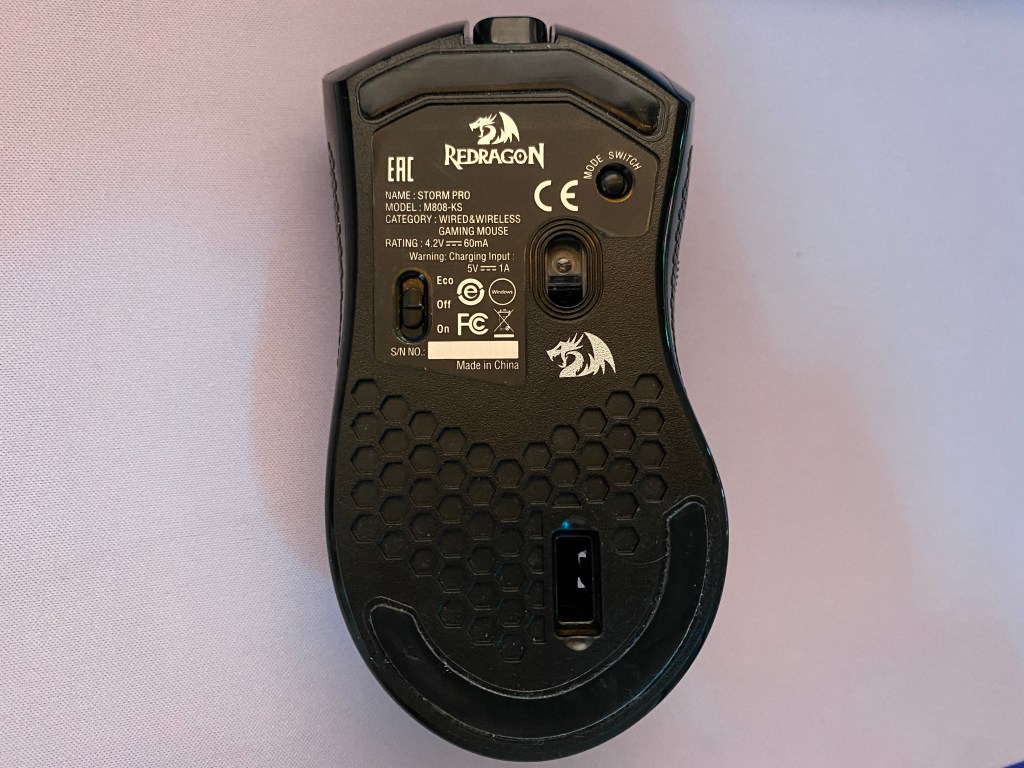
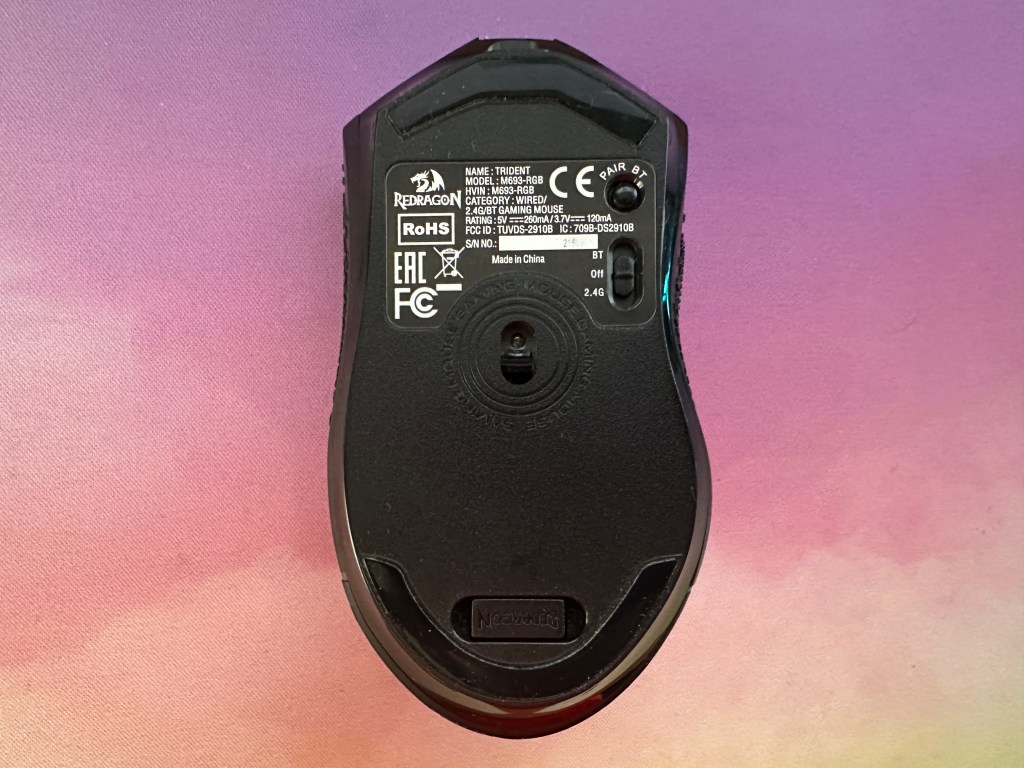
Redragon offers a standard USB-C port and on the bottom of the mouse is a spot to store the 2.4Ghz dongle if needed. This is nice to see if you want to bring this mouse on the go.

Despite the price point, the M693 has a pretty decent build. There are a few weak areas but for the price, it is hard to complain about the mouse.

Style and Comfort
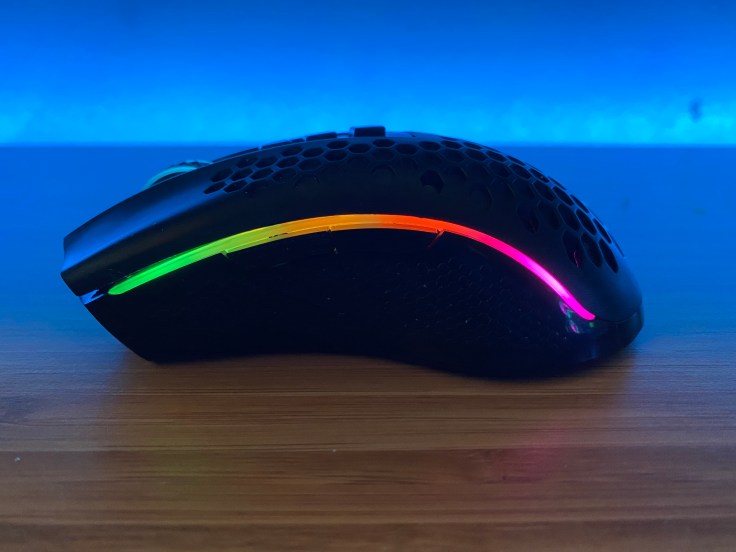
Side view of Redragon M693 mouse

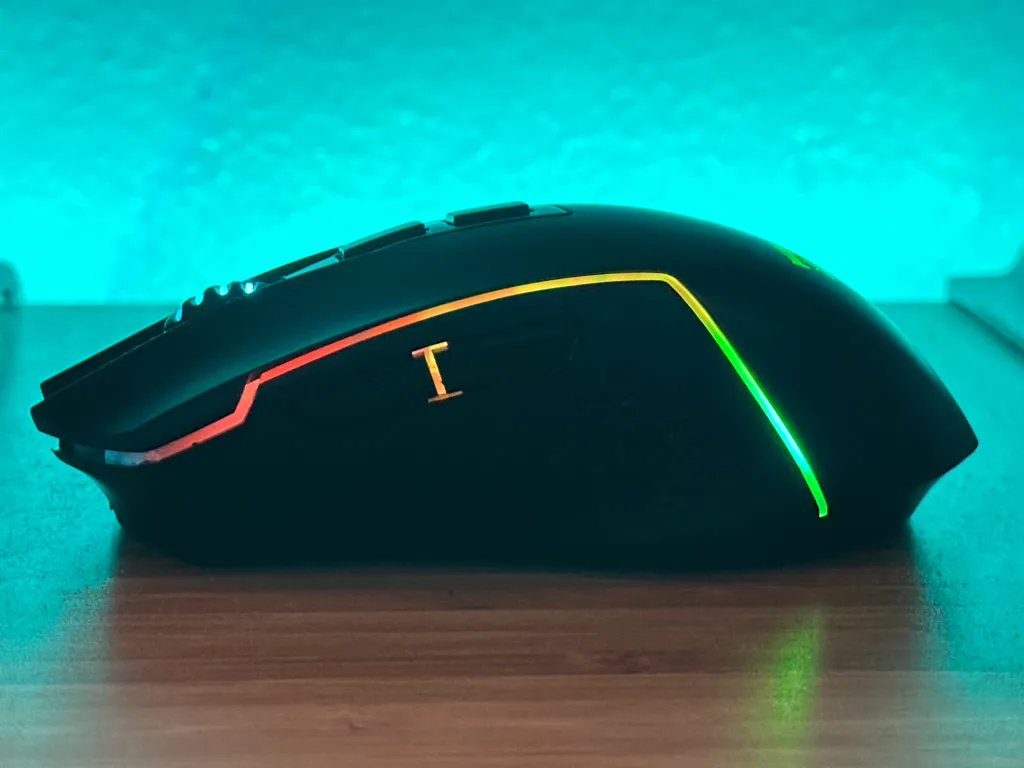
Redragon’s M693 has a slightly ergonomic design with a minimal indentation on the left side to hold the user’s thumb. In my opinion, this slight contour makes the mouse more comfortable than many ergonomic mice without forcing your hand to sit in a specific position.

Although the M693 is not ambidextrous it has the height of many other ambidextrous style mice. Additionally, this mouse is designed to give a lot of space for your fingers but minimal room for your palm. While this may not be a problem for you, I found that it could get uncomfortable with a palm grip for longer gaming sessions.

This contrasts with more ergonomic mice like the UTechSmart Venus Pro or Logitech’s G502 which like to force you into a palm grip but are very comfortable for extended periods.

The M693 utilizes rubber on the scroll wheel and some textured plastic on the sides to make the mouse a bit easier to hold. I do wish that the side material was some sort of rubber or more grippy plastic than the current textured material as I think it would make gripping the mouse a bit easier.

The buttons on the M693 are easy to press and well-sized. This is especially the case with the two primary buttons which are very big and are comfortable for both big and small hands.

Advertisements

Switches and Scroll Wheel

Front of Redragon M693 mouse

To get a mouse at such a good price, one of the sacrifices you have to make is on the quality of buttons. On the Redragon M693, the buttons could be the weakest aspect of the mouse.

The button clicks feel decent but there is a bit too much give on the main two buttons before they actuate.

The latency is really what brings these switches down though. If you just want a gaming mouse for casual gaming, Minecraft, or strategy games, then this mouse will work just fine. However, if you play only FPS games then saving up a bit more to spend on a better mouse might be a better option

As for the scroll wheel, it feels adequate. It doesn’t feel as solid as something from Logitech but still has acceptable tactile steps.

Sensor and Polling Rate
Bottom of Redragon M693 mouse

Redragon’s M693 features a Pixart PAW3104 optical sensor with a maximum DPI of 8,000. You will also get the industry standard 1000Hz polling rate.

The main disappointment of this sensor is that you can only edit the DPI in increments of 100. This means that if you use a DPI of say 450 then you are out of luck. This left me disappointed because I was left resorting to use a DPI of 800 rather than my usual 750.

Other than that the sensor is decent and most of my struggles with the mouse came from the lack of DPI adjustment. For the price the sensor is not bad but there are certainly better options at slightly higher price points or with wired mice at this price.

Advertisements

RGB Lighting

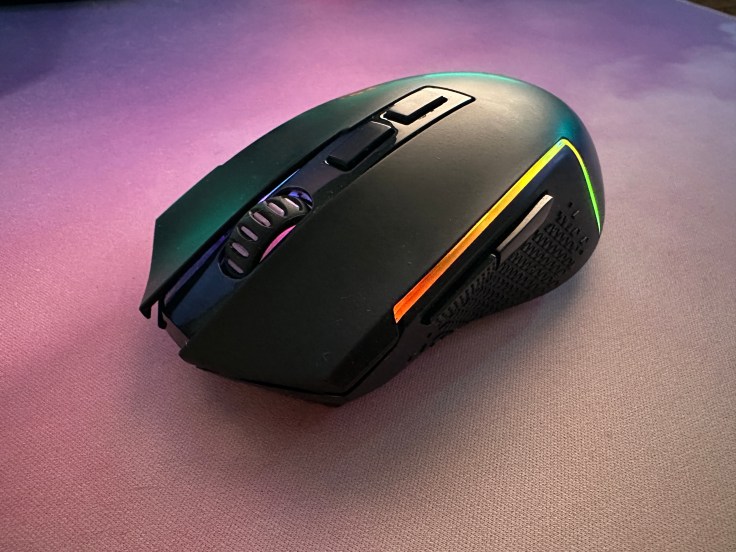
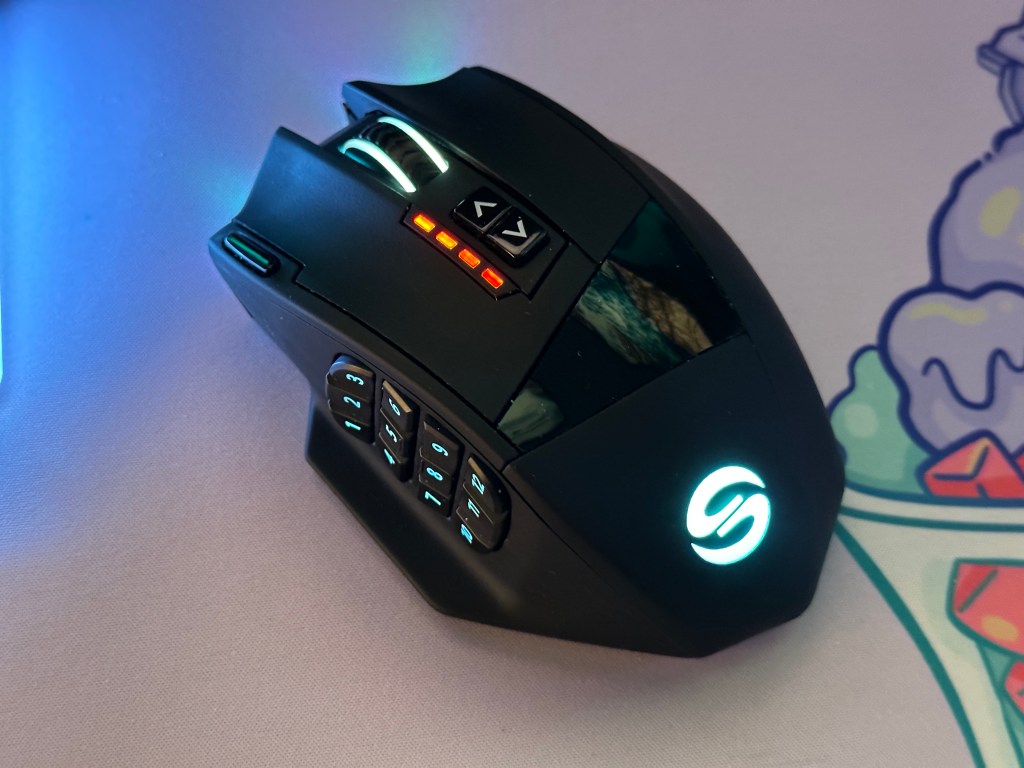
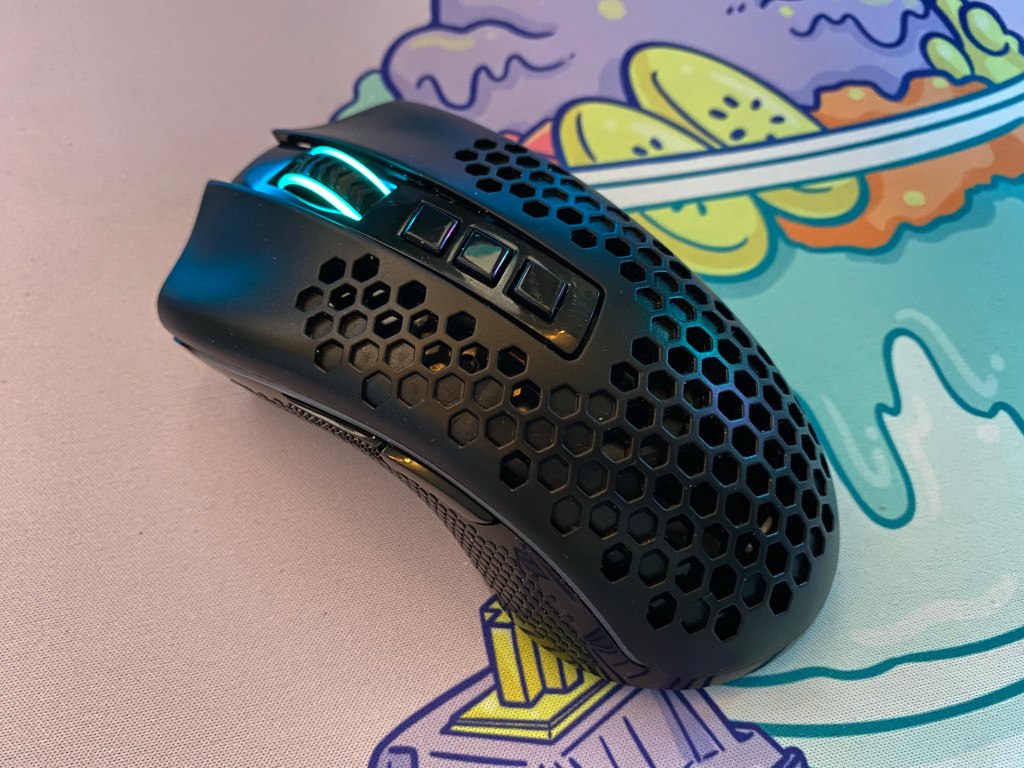
Angled view of Redragon M693 mouse

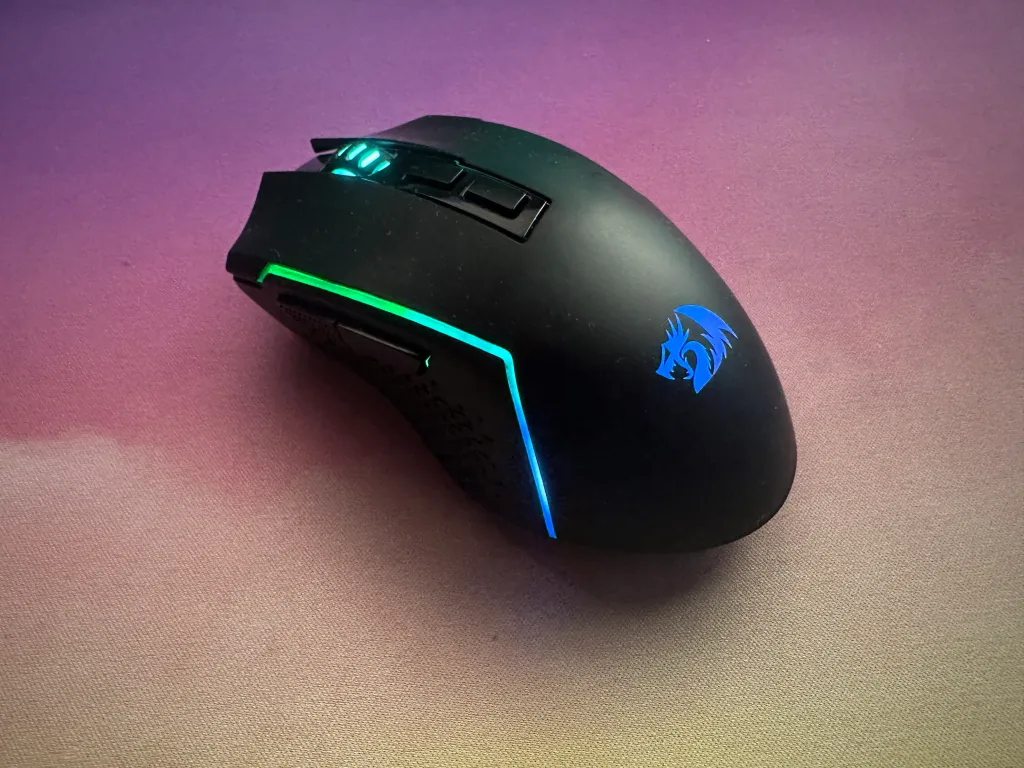
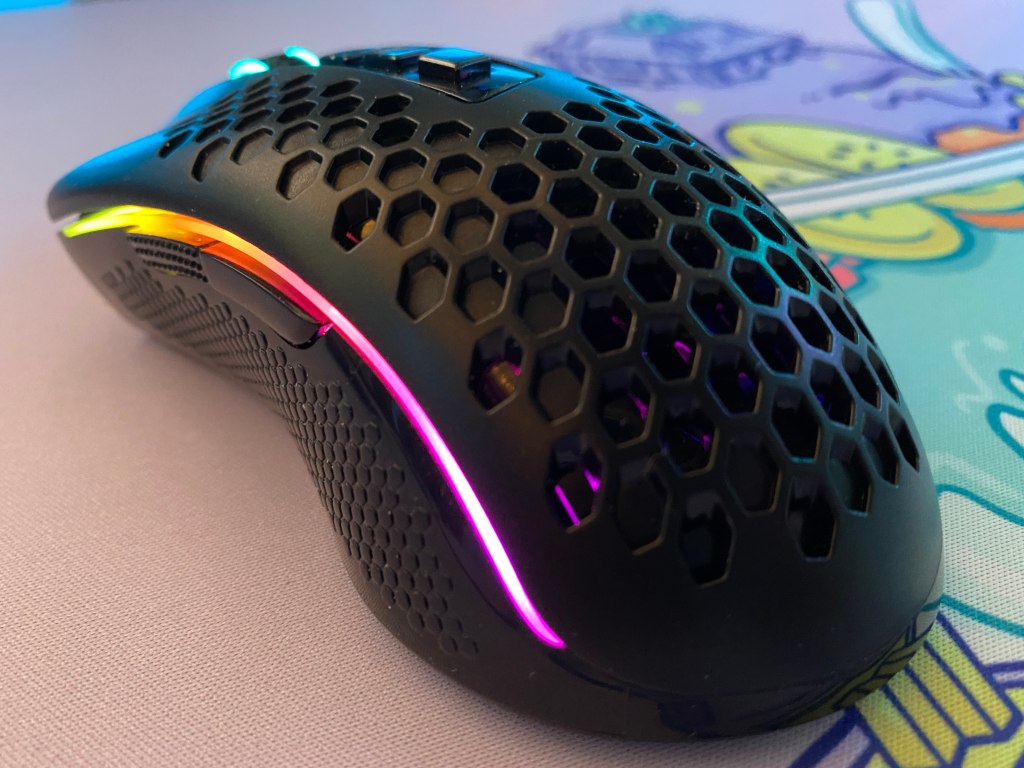
Redragon’s M693 offers RGB lighting on its scroll wheel, logo, and sides of the mouse. The RGB isn’t anything crazy to see here but is expected as a gaming mouse.

The lighting on the sides is not very consistent and is much dimmer compared to the scroll wheel and logo. If you don’t like RGB lighting too much then you can also easily turn it off in the software. Personally, I would have preferred if the lighting was only on the logo and scroll wheel because that would look a lot cleaner.

Overall for the price the lighting is fine but the inconsistency in it makes the mouse look cheap. If you don’t like RGB lighting too much then you can also easily turn it off in the software.

Wireless Connectivity
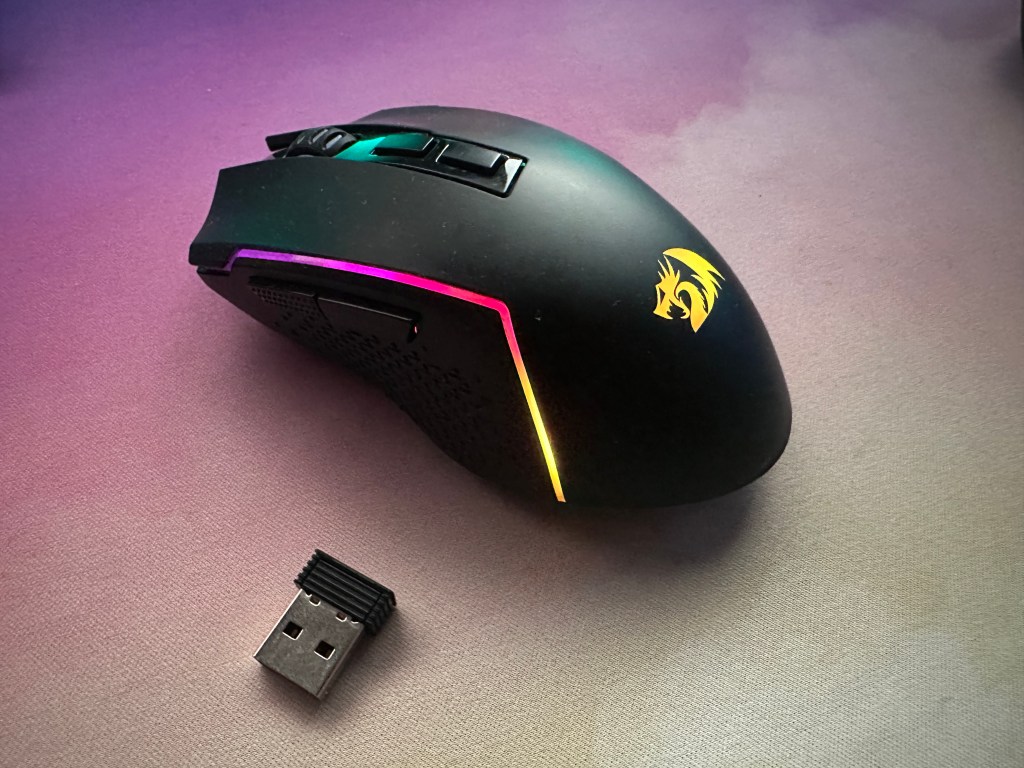
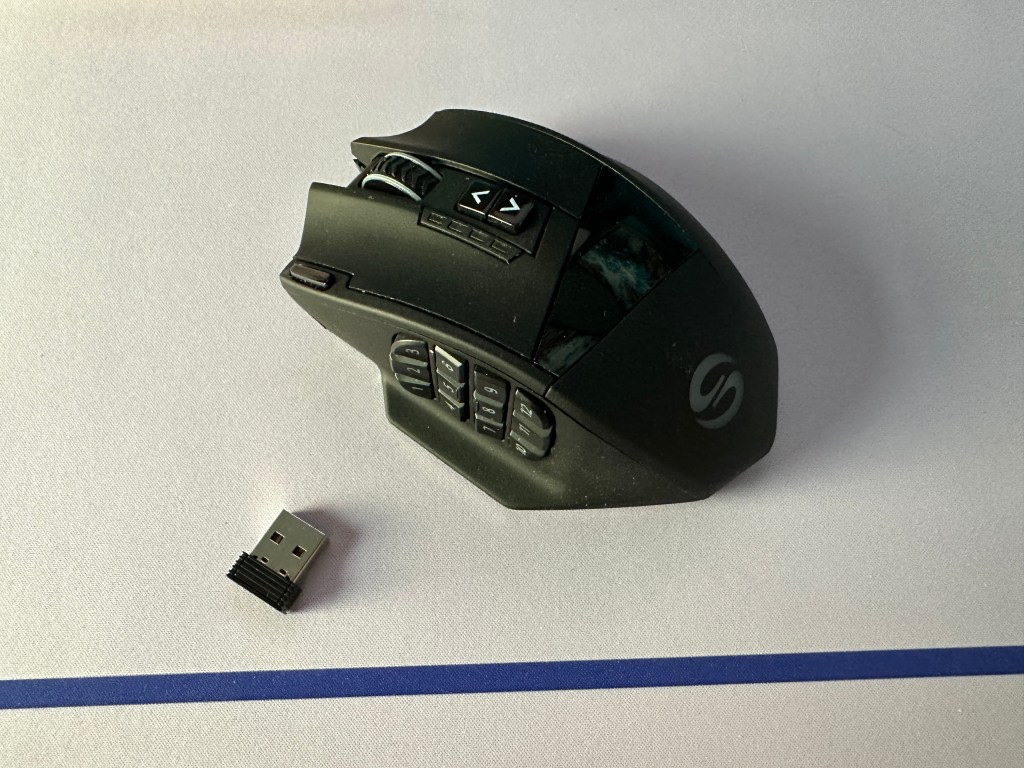
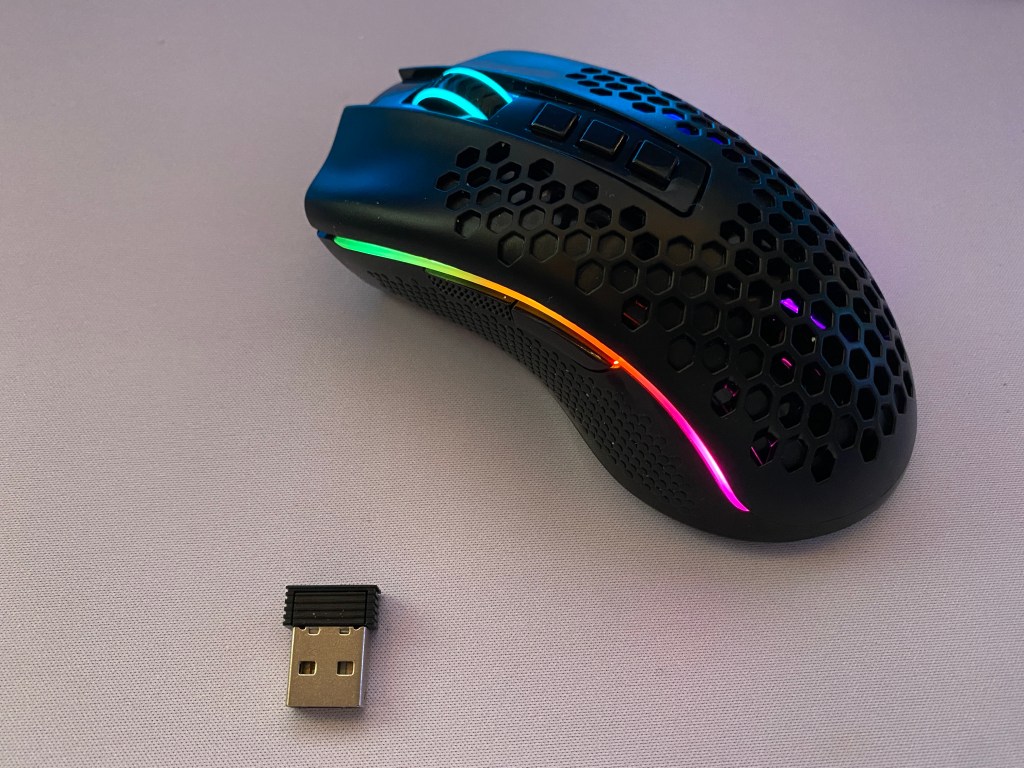
Redragon M693 mouse with wireless dongle

Considering the price of the M693, the fact that it offers three different options for connectivity is impressive. You can opt to use a wired or wireless connection. For wireless, there is both Bluetooth and 2.4Ghz with a dongle.

The 2.4Ghz connection is probably the best way to go. You get the benefit of wireless and it will be more reliable than Bluetooth. However, you won’t get the same performance as a wireless mouse from Logitech, Razer, or Corsair.

If you are playing a lot of competitive FPS titles then a wired connection may still be better in this case but in my testing the wireless connectivity is solid and shouldn’t hamper your abilities. There might be slightly more latency than my daily Logitech mouse but it was not a noticeable problem.

Redragon advertises the M693 as having up to 35 hours of battery life with a 700maH. With lighting on, however, the mouse will most likely last you three to five days depending on your usage. Turning down the polling rate could also help but would also impact the performance of the mouse.

Overall this is a nice feature to see and for the price, it is rare at this price point. If you want the best wireless connection for gaming you may need to spend $10 to $30 more.

Advertisements

Software Support

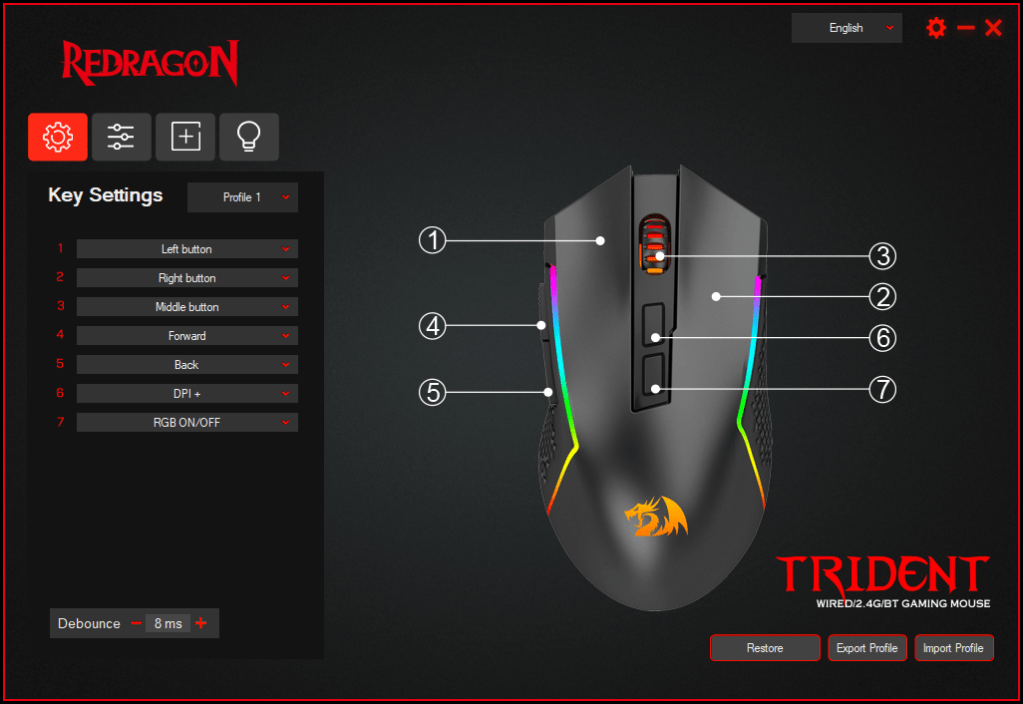
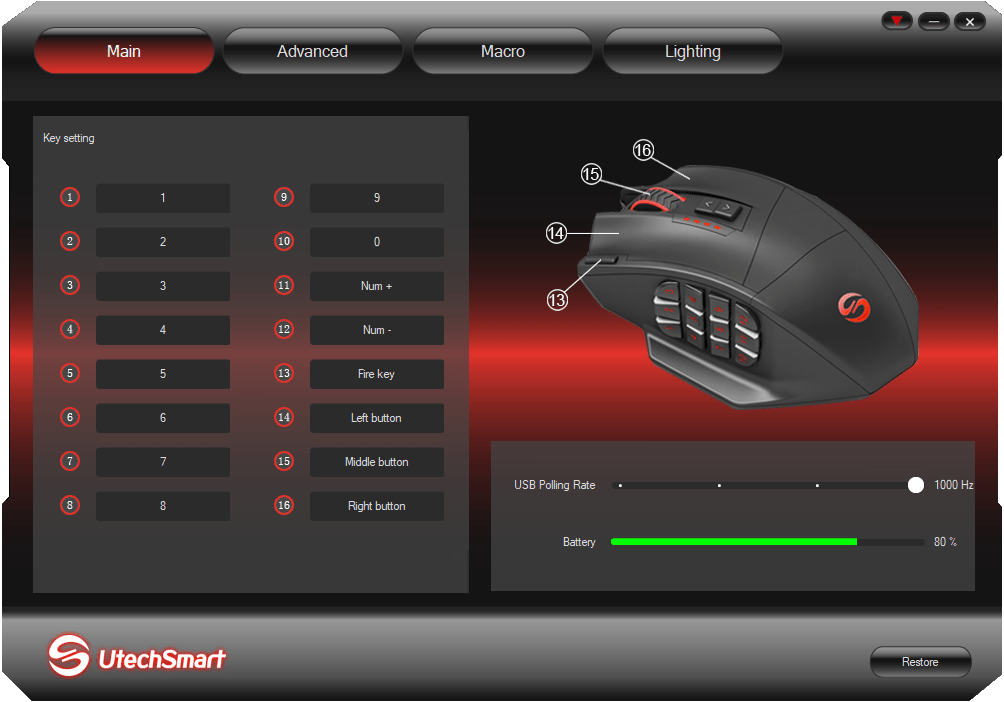
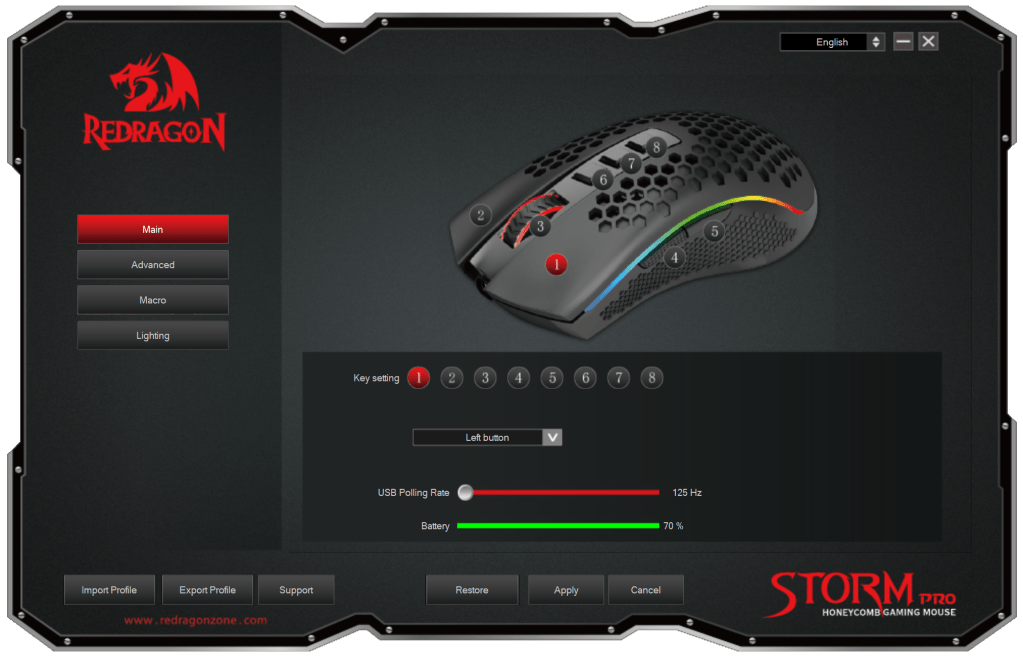
Software for Redragon M693 mouse

Although Redragon has had poor software in the past, one of their biggest areas of improvement is the software. It still does not compete with Corsair iCue or Razer Synapse, but it is a bit better than the competition around this price point.

The software tells you everything you need to know and lets you change all the key elements of your mouse. In addition to changing button mappings, lighting, and DPI, you can also change macros and alter factors like lift off distance.

The only nitpick I have with the software still is that it would be nice to resize the window. If you could maximize the window it would make the experience a bit nicer. However, the software is very nice to see at this price and it is good to see that they have been listening to user feedback.

Conclusion: Is The M693 Good For Gaming?

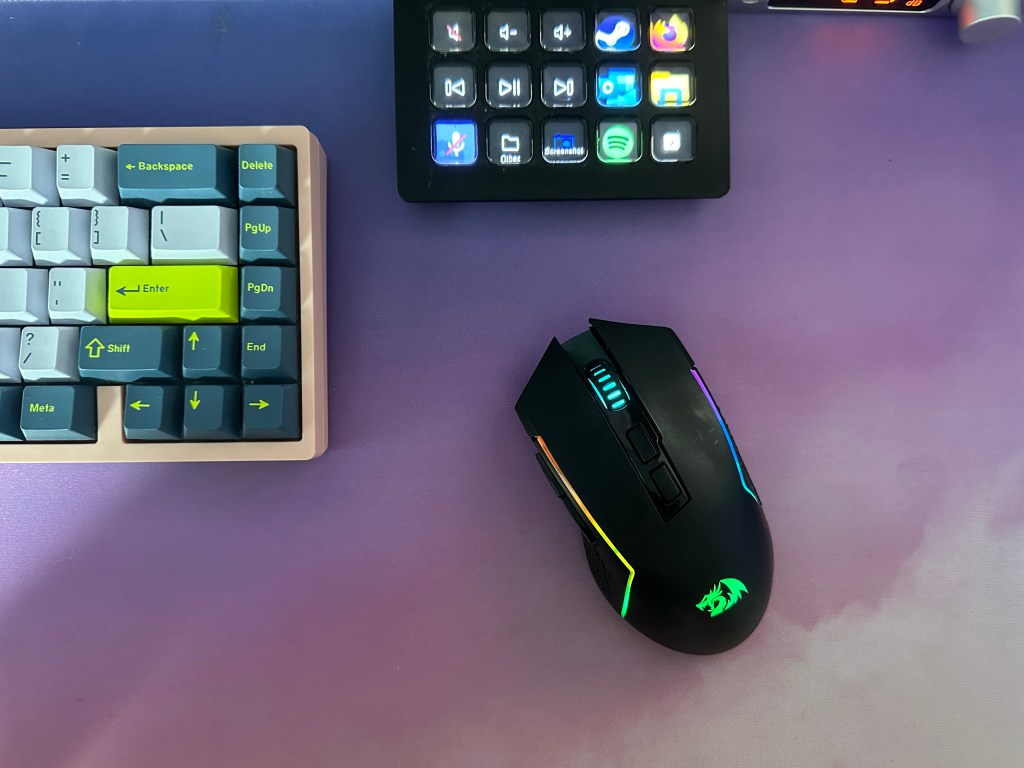
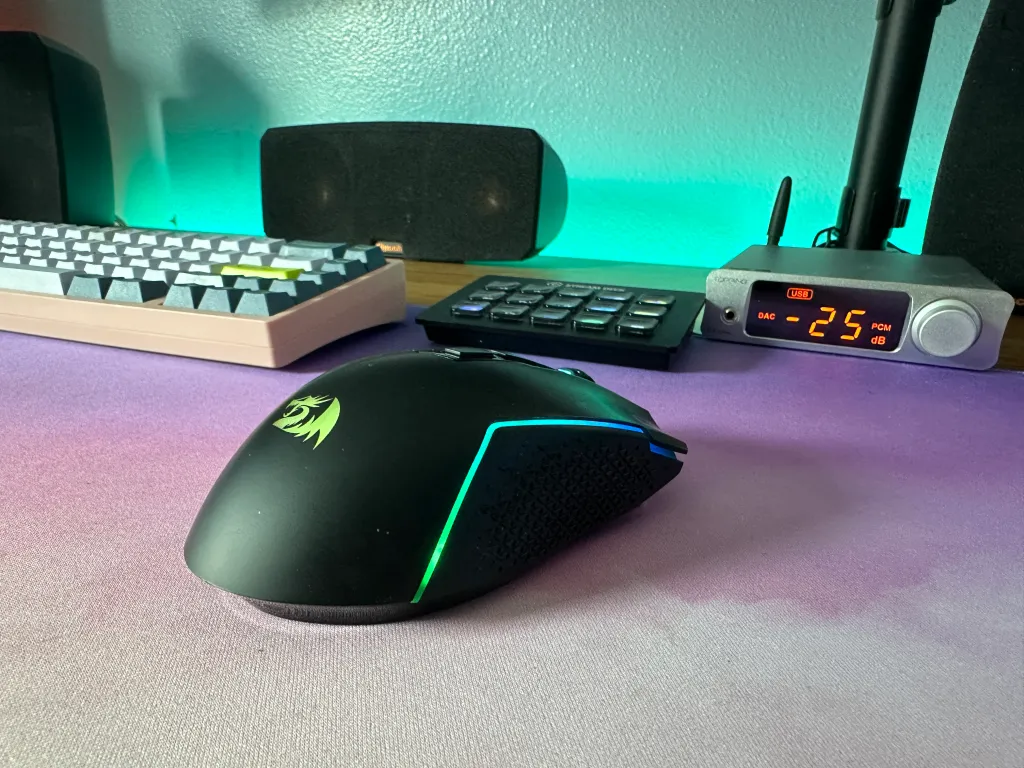
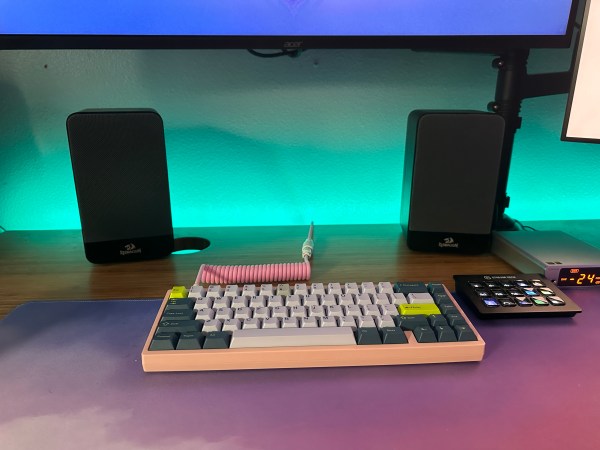
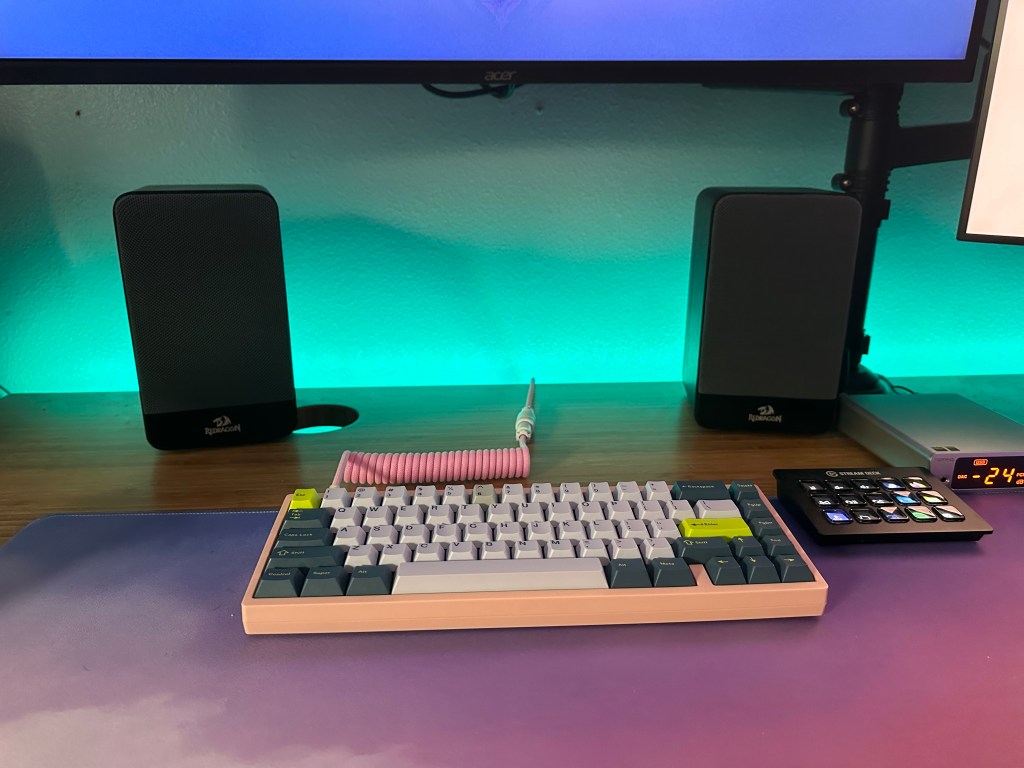
Redragon M693 mouse on desk with other desk peripherals in the background

The Redragon M693 makes wireless gaming mouse accessible for the budget buyer. It comes with a decent build for the price, RGB lighting, software support, and a pretty comfortable design.

Despite all the features that this mouse has, there is one achilles’ heel to consider for the M693, the switch latency. While the M693 will perform better than your average mouse that may have come with your computer, it won’t be putting you at an advantage in competitive FPS titles like CSGO or Rainbow Six Siege.

This is unfortunate because the M693 coming it at 90g would make it a great option in most other aspects as an FPS focused mouse. If this a deal breaker then looking at wireless options for about $10 more like the Logitech g305 is a good alternative. If you can sacrifice on wireless connectivity, the Logitech G502 or Razer Viper wired versions will offer much better performance at a slightly higher price point.

The only other nitpicks that I had were primary buttons that had a bit too much play and a sensor that lacks adjustment in increments of less than 100. However, you typically won’t see mice that don’t have these issues at this price.

However, all things considered, the Redragon M693 is a great option to considered if you are strictly restricted to a budget of under $30 and you do want a wireless gaming mouse. The M693 is a solid first gaming mouse.

If you are playing single player titles like Minecraft, Assassins Creed, or GTA, then the switch latency shouldn’t pose a significant issue for you while gaming. Wireless connectivity comes with many positives by getting rid of the cable. Additionally, the M693 makes it quite accessible.
Advertisements

Redragon MOUTHPIECE GS813 Speakers Review: Are Redragon Speakers Worth It

Speakers are a common peripheral for any desk. They are a key part of any desktop setup and function as a great upgrade from laptop or monitor speakers. Redragon with their MOUTHPIECE GS813 speakers offers an option for those that want a set of speakers but don’t want to break the bank.

If you would like to find out more about Redragon’s MOUTHPIECE GS813 speakers keep reading to see our thoughts. We will discuss how the GS813 speakers will compare to big brands like Logitech and audiophile-quality speakers.

The Verdict

Rating: 3 out of 5.

If you are looking for a set of decent desktop speakers but don’t want to break the bank. Redragon’s MOUTHPIECE GS813 speakers offer an upgrade from standard monitor or laptop speaakers around the $40 to $60 price range.

While the Redragon GS813s won’t blow anything out of the water for the price in terms of sound quality, they offer a pleasant design and a solid amount of connectivity. You can connect up to four different sources at once and with the side media controls you can change things like your bass and input device easily.

The build is made out of compressed cardboard so it won’t be the greatest quality but it will offer an upgrade from cheaper plastic speakers. The sound does have acceptable midrange but overall lacks in clarity and bass due to the small amount of power output from the set overall.

These speakers make a decent option at around the $30 to $40 price. However, if you are willing to spend more, then there are plenty of good options from bigger brands in audio like Logitech. For those that prioritize sound quality for their music, I would save up and try to spend a bit more on something with a bit more clarity from the likes of PreSonus or Edifier. These will offer vastly better sound quality due to their higher power output.

All that being said if you want something that just works as a speaker for your desk setup and you don’t want something that sounds like it is coming out of a tin can, like many cheaper alternatives, the Redragon GS813 is a nice place to be. It is especially practical if you are someone that will make use of the additional USB and MicroSD inputs.

In The Box

Everything is packaged nicely so you don’t have to worry about your speakers when shipping to you.

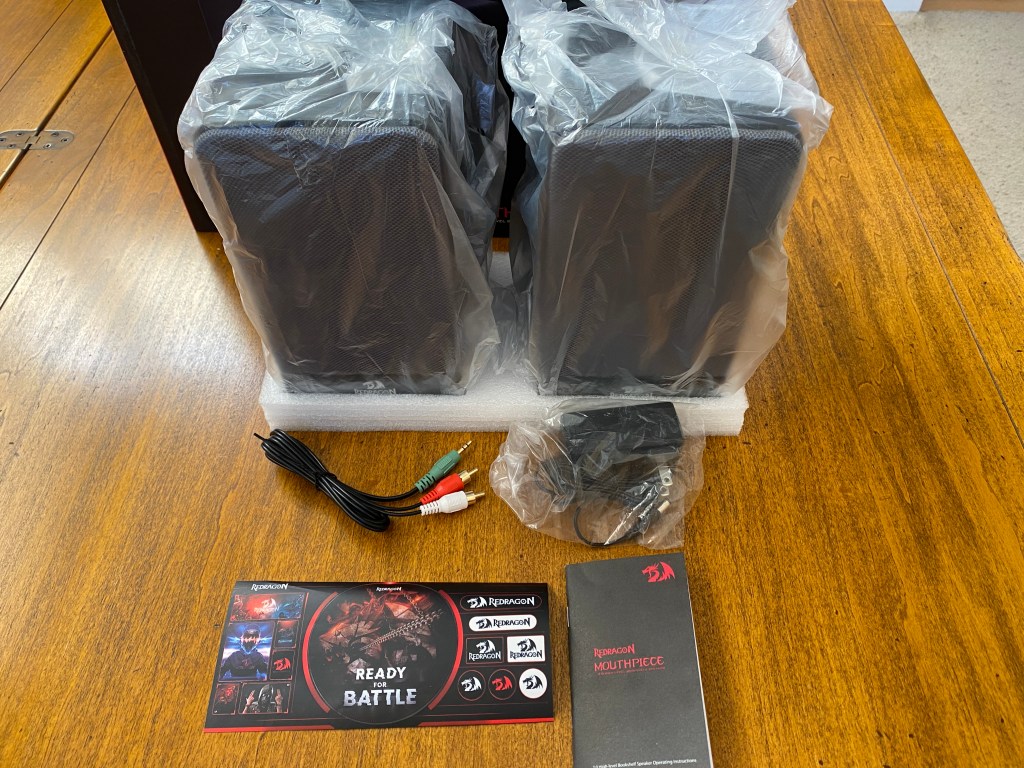
Speakers: Both speakers come wrapped in plastic wrap and some protective plastic over the piano black on the front.

24W DC Power Cable: You get a standard DC plug at 5.9 ft (1.8m).

3.5mm to RCA Cable: You can connect this cable to both the left and right audio channels on the main speakers. You will get 3.2 ft (1m) in length.

Stickers: Inside the box is a sheet with a variety of branded stickers. They look quite gamery.

Advertisements

Technical Details

  • Drivers: 3 Inch Bass Units
  • Power Output: 20w
  • Inputs: 3.5mm, MicroSD, USB, Bluetooth 5.0
  • Weight: 6.61 lbs.

The Build and Style

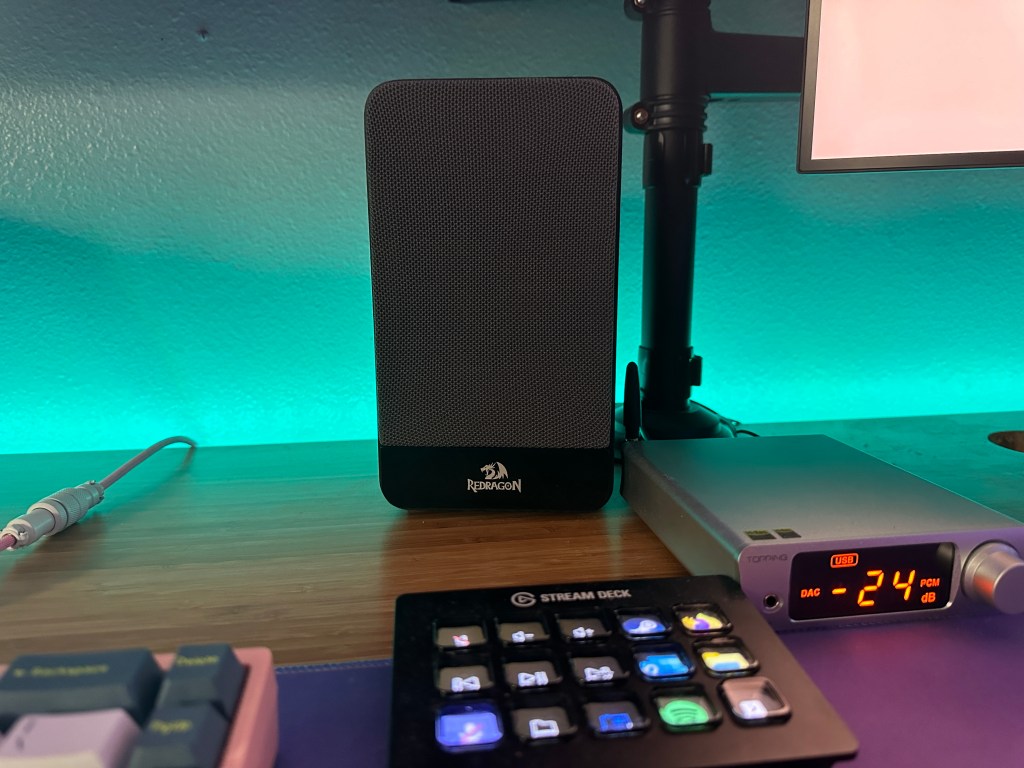
Redragon’s MOUTHPIECE GS813 speakers come with a grey and black look. The majority of the casing is made from a fake grey wood made out of compressed cardboard. The front features grey driver covers and some piano black.

With the GS813s you don’t get the typical gamery look that you see with Redragon products. Instead they provide a nice accent without too much going on. They only factor that really identifies these speakers as a gaming brands is the logo with a dragon. This element may be hit or miss depending on what kind of setup you are going for.

Unfortunately, the wood covering appeared to come off moving the speakers. This most likel won’t be an issue if the are a static peripheral on your desk but potentially a plastic material would have been a better option.

Advertisements

Sound Quality

With the Redragon MOUTHPIECE GS813s you will get a pretty typical sound profile for the price. Most of the volume comes from the midrange and the bass is lacking. Generally the volume is adequate for desktop speakers but don’t expect to use these for a home theatre.

The bass would probably be better if these speakers were bigger or if they came with a subwoofer but those would all add to the cost of the GS813s. Generally muddy bass is expected at this price point and Redragon’s GS813s are no different. The treble exists but is not incredibly clear. The midrange is the most present and helps bring out instruments in the music.

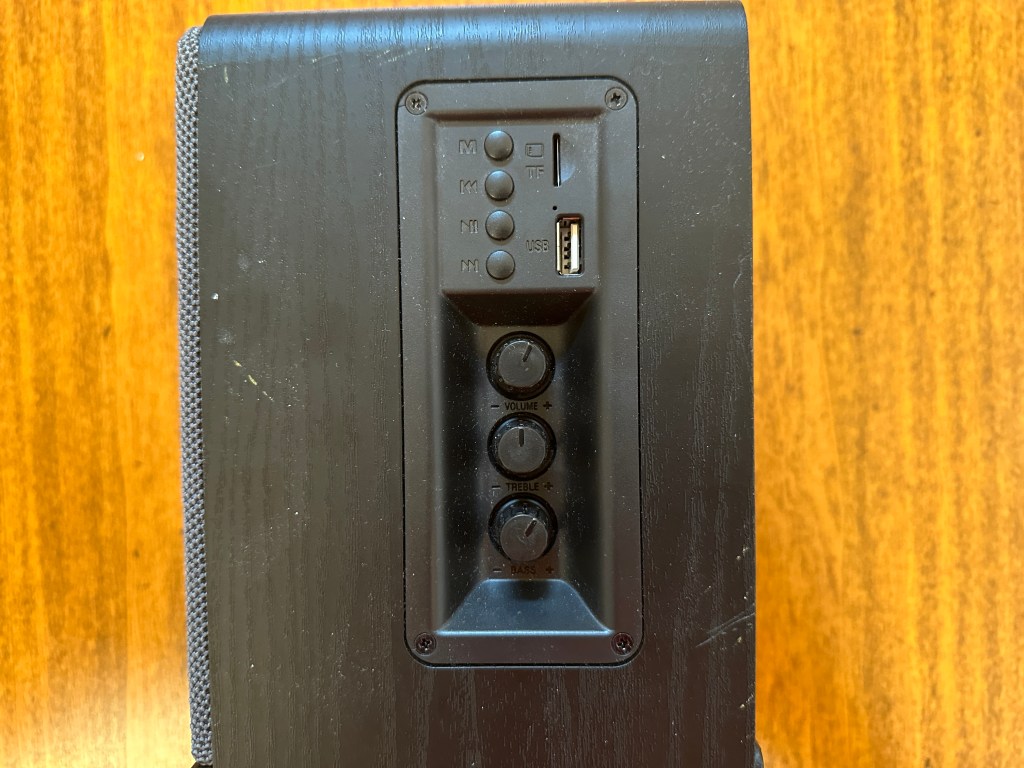
If you do want more treble or bass, you do get a dial on the side to control the amount of each, but I will note that this does not make much of an impact for bass. It gets louder but more distorted. A subwoofer would greatly change the sound of these speakers but it would be better to buy more premium speakers if that is something that you care about.

The device the speakers were plugged into also seemed to have a slight impact. When connected to my MacBook or amp they sounded a bit better in the low end versus being connected to my phone.

For soundstage, the GS813s are not the greatest. Certainly, better than some cheap TV or monitor speakers, but you don’t feel completely immersed like you do with more high-end speakers from the likes of Edifier or Audioengine. For imaging this is another weak point of Redragon’s MOUTHPIECE GS813 speakers. Along with the general lack of clarity in the speakers, the imaging also lacks clarity making it hard to pick out the specific location of different instruments and sounds.

Overall the sound quality is not anything crazy and if you are really into to music I would not recommend these speakers. However, any set of speakers at this price are not the best for music listening. I will note, however, that these speakers will be an upgrade from most laptop speakers. If you are looking for a set of speakers that do the job and have a few nice features then that’s what the Redragon GS813 speakers offer rather than raw, good sound quality.

Advertisements

Connectivity

Arguably the best part of these speakers is the connectivity. In addition to the typical 3.5mm jack, you get Bluetooth 5.0, a USB port, and a MicroSD card slot. While Bluetooth is getting quite popular with speakers, it is not as commonly seen at lower price points so it is nice to see here. It was easy to connect to and took less than a minute.

The USB port is a feature that I rarely see on speakers. This is nice if you have music on a USB and just want to play music that way. However, this is a feature that is starting to become less useful with the widespread use of music streaming. The MicroSD card probably serves a niche use of people who are recording audio on SD cards. That being said, these forms of connectivity are always nice to see and are what make these speakers so versatile.

Next to these ports, you will also find four buttons. One to control the input modes and the other three will work as pause, previous, and next. This is especially helpful if you plan to use the USB port or you just can’t access your connected device.

Conclusion

The Redragon MOUTHPIECE GS813 speakers are a step up from intergrated laptop or monitor speakers. They also provide a nice step up from the $20 desktop speakers that sound tinny. However, the the GS813s stay humble by not trying to be premium speakers either.

They lack clarity and don’t have an abundance of bass but are able to provide decent volume for a desktop setup. The build is adequet for the price with compressed carboard that looks like real wood and an overall design that doesn’t look like it comes from a gaming brand.

Here you are getting what you pay for. The quality is about what you would expect in terms of build and sound. The GS813s are the right place to be for this price point. Plus they have one area where they step over the competition. The abundance of connectivity options, whether it’s Bluetooth 5.0 or the USB and MicroSD slots, mean you can use these speakers with a variety of devices.

In a price range where many options are overpriced or low quality, if you get the Redragon GS813 speakers for their typical sub $40 price, then they are a solid option to go with for budget speakers. If aren’t looking for a premium speaker at a higher price point but want something a bit more satisfactory than $20 5 watt speakers, then check out the Redragon MOUTHPIECE GS813 speakers as an option for your desk setup.

Advertisements

Skyloong GK75 Aluminum Kit Review: All The Knobs

Skyloong has a reputation for making strong valued keyboards that provide a good medium between gaming keyboards and going fully custom. Skyloong’s GK75 Aluminum Kit allows you to get a keyboard that is well made and sounds good with only ten minutes of actual build time.

The Skyloong GK75 is a 75% mechanical keyboard that you can find either as a prebuilt or kit. The GK75 is feature-packed and offers a lot of flexibility.

If the Skyloong GK75 sounds like an interesting board for you keep reading to find out more.

The Verdict

Angled view of Skyloong GK75 Aluminum on desk

Rating: 4 out of 5.

The Skyloong GK75 is a great-value keyboard that gives buyers an opportunity to experiment with the mechanical keyboard hobby without too much risk or difficulty. With a hotswap PCB, preassembled case, installed foam, and prelubed stabs, the GK75 just needs switches and keycaps.

Additionally, the aluminum build, knobs, MacOS support, vibrant backlighting, and optional wireless connectivity are all great features that add to the experience.

Unfortunately, the Skyloong GK75 uses north-facing sockets on its PCB, preventing the use of cherry profile switches keycaps. This is paired with dated software and plate mount stabilizers. At this price point, those are downsides that most competitors don’t have.

That being said if you like the knobs on this board and the GK75’s high-quality design then it is a solid option. Ultimately Skyloong gives the buyer an easy-to-use package. It requires minimal if any modding to make the board sound good and comes with plenty of extras in the box.

If you want a number of features and the GK75 design is enticing then it may be the board for you. Plus if you don’t plan to use cherry profile keycaps then you may find the GK75 does not have any major issues.

In The Box

Unboxing of Skyloong GK75 Aluminum mechanical keyboard

Opening the box you will find the GK75 with a plastic cover over it. Additionally, there are a variety of accessories.

Coiled USB-C Cable: There is a pretty decent quality braided and coiled cable. It features an aviator and comes with a black and red colorway that doesn’t really match the theme of the keyboard. At the end is an adapter already plugged in to make it support USB-A but you can remove this for a USB-C to USB-C connection.

Keycap and Switch Puller: This comes as a switch and keycap puller in one. Usually, I find these a bit harder to use than a dedicated one for each purpose but this one does the job.

USB-A to USB-C Adapter: Whether you want to use the GK75 with a laptop or computer you should have no issues with connectivity with this adapter. That being said you probably won’t need this adapter as there is already an adapter on the cable that you can remove.

CNC Aluminum Knobs: You get 4 high-quality CNC aluminum knobs in the box that you can add to the board as you wish.

Split Spacebar Module: If you would like to use the GK75 with a split spacebar then you can. This way you can have 3 buttons instead of just one where the spacebar is. The stabilizers here will already be lubed and ready to go.

2.4 Ghz Dongle: If you opt to get the wireless version of the board then it will come with a 2.4 Ghz dingle in a slot at the bottom of the board.

Extra Parts: In case you ever need them, Skyloong includes some extra screws, standoffs, and silicone washers. This is really nice to see if you ever lose a part or are further modding your keyboard.

Documentation: You get a manual about the board that comes in what appears to be Mandarin Chinese, along with some information about Skyloong.

Advertisements

In my prebuilt copy, I got a few other accessories. These should come with the GK75 kits.

Extra Keycaps: I got all the remaining keycaps that would have been in a set. Skyloong lets you get all the keycaps that you don’t use with your board in case you want to use the keycaps with another board or want to try using different switches.

Extra Switches: Additionally you will have about six switches that match whatever you get in your board. This is helpful if you ever bend a pin or want to replace a knob with a switch.

Note that if you choose to get a prebuilt then the extras that you get may include different keycaps as Skyloong sells many different versions of the GK75.

Overall all the extras inside the box are really nice to see. Few companies match this experience and it is helpful as you don’t need to buy any extras.

Build Quality

Top view of Skyloong GK75 Aluminum mechanical keyboard on desk

The main element that makes the GK75 Aluminum Kit an upgrade over the standard GK75 is the build quality. For $100 more you get an upgraded aluminum case that feels heftier. It comes in at about 1.2 Kg or 2.65 lbs. The aluminum kit comes in either a medium grey or a dark blue color.

Although the stock angle of the board is quite comfortable, there are two additional levels of flip-out feet. These are made of plastic, as is the rest of the bottom of the board. All the major touchpoints like the top case and the knobs are still aluminum though.

You get a left-mounted USB-C port that is quite deep in the board. This is paired with routing channels through the left, center, and right parts of the front of the board. Personally, I find that cable routing channels don’t actually do that much for cable management and just add more hassle. Next to this USB-C port is a spot for the USB dongle.

When buying the kit you get your choice of either a polycarbonate or fiberglass (FR4) plate. Both materials are on the softer side compared to materials like brass or aluminum. I personally went with the FR4 plate for a slightly firmer and muted sound but many people prefer polycarbonate for a flexible and thocky typing experience.

The plate uses a gasket mount structure similar to that of the KBDFans KBD67 Lite. The mount is integrated into the silicone dampening between the plate and the PCB. This offers a deeper and softer typing experience that has made the gasket mounting system popular. However, this form of gasket mount won’t be extremely soft and will still provide a decent layer of firmness because the silicone dampening limits the amount of possible flex in the PCB and plate.

Generally, Skyloong makes well-made products and the GK75 is no different. The build quality of the GK75 Aluminum Kit matches up with other boards at its price point.

The Build Experience

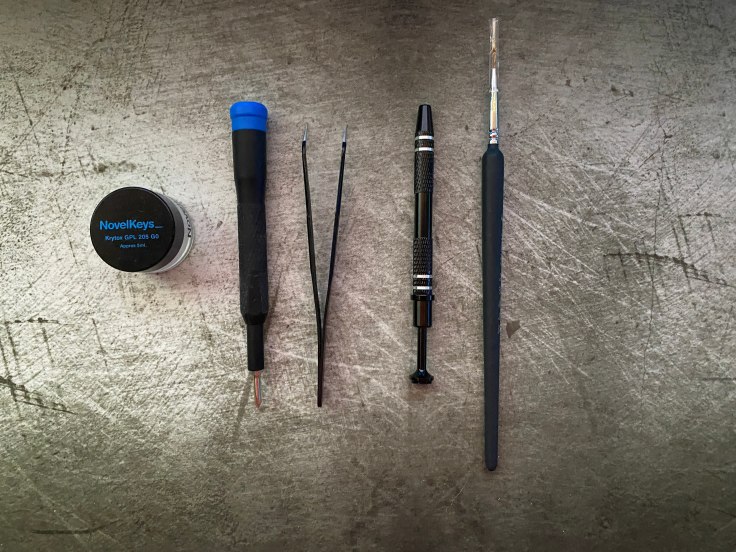
Tools to build a mechanical keyboard on a deskmat

As with all keyboard kits we like to discuss the build experience. Typically when building a keyboard it is nice to have a guide but luckily the GK75 kit is so easy to build with, so you don’t even need a guide.

The case, PCB, plate, and stabilizers are already assembled in the board. Additionally, the already lubed stabs mean you don’t need to open up the board if you don’t want to. You just need to throw in some switches and put on your choice of keycaps. The GK75 Kit can be assembled in about 15 minutes or less.

The best part about the build experience for the GK75 is that it is easy to work with and that sounds good out of the box. This is especially nice for those who are new to keyboards.

The Keycaps

Skyloong keycaps with a keycap puller on a deskmat

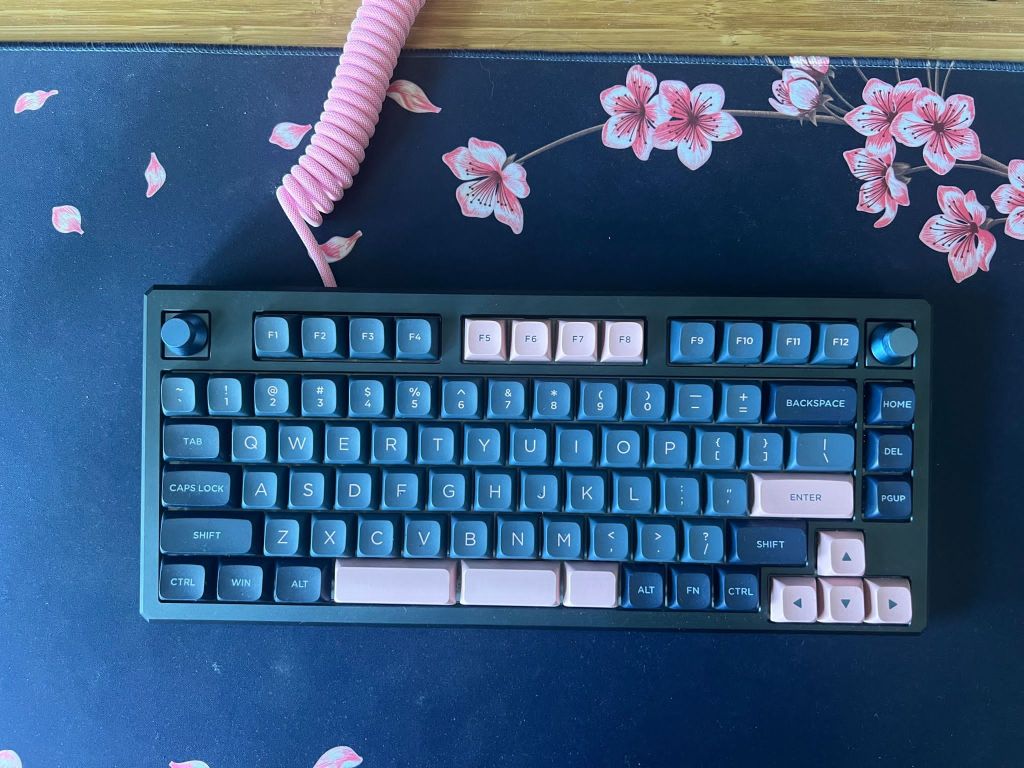
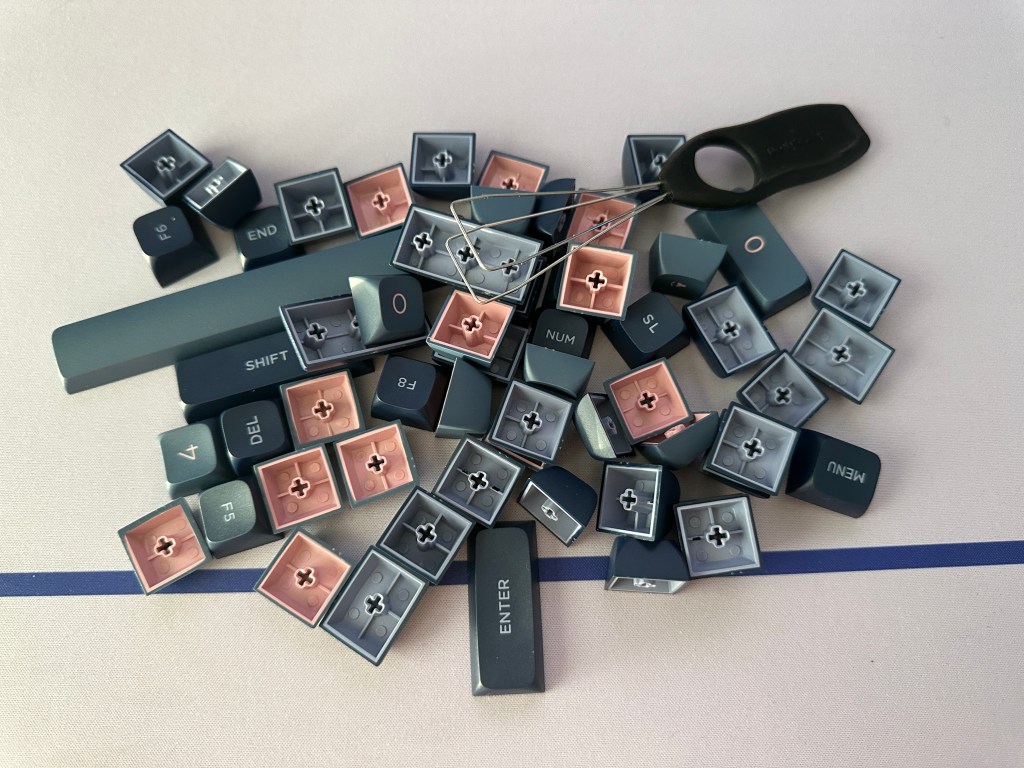
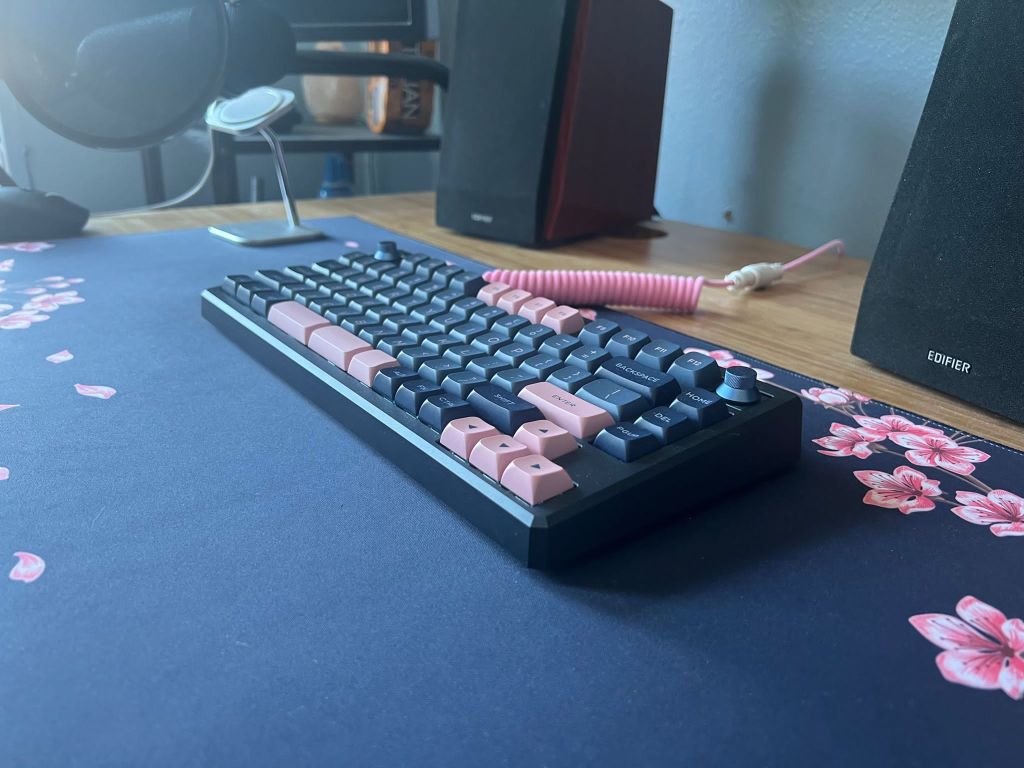
With the GK75 kit, there are no keycaps included with the board. However, Skyloong included some of their own keycaps for me to try out. I tried their Dark Blue Pink set in the custom GK5 profile. This profile is similar to other low profiles like XDA but it has a substantial difference in the angle of each row for a more comfortable typing experience.

This set is included with the Dark Blue GK75 boards and feels pretty high quality. It is made from PBT plastic, with some texture, and doubleshot legends for durability.

Since the GK75 Aluminum comes as a kit, you can choose whatever keycaps you would like. Note that because the GK75 PCB only supports north-facing switches, it will not be compatible with any cherry profile keycaps.

If something similar to cherry profile is important to you, check out Drop’s DCX profile keycaps. However, if price is a concern, there are sets that cost as low as $20 that support the layout of the GK75.

Advertisements

The Switches and Stabilizers

Since this board comes as a kit, no switches come with the GK75. However, the board does come with some prelubed plate mount stabilizers that sound pretty decent.

Typically plate mount stabilizers are not as good as PCB mount stabilizers but I found these to be pretty decent in my unit. At this price point, it would have been nice to see PCB mount stabilizers.

I did have the opportunity to test some of Skyloong’s Glacier Brown switches that come in some of their prebuilts. The Glacier Browns feel about as heavy as Cherry Browns but have a tactile bump that feels similar to some top tactile switches like Boba U4Ts. I am quite impressed with the Glacier Browns and lubed they feel pretty smooth too.

Since this is a kit, almost all mechanical switches will work in this board. If you need any help check out our best linear switch, tactile switch, or clicky switch guides.

If you do opt for a prebuilt version of the GK75 make sure to get one that is mechanical. Not only do the optical switches often feel less satisfying but you have vastly fewer options to choose from on the aftermarket compared to mechanical switches. Additionally, you only save $20 to get optical switches.

The gasket mount system and included foam allow the GK75 to sound good with the majority of switches. If you put in lubed switches then minimal if any modding will need to be done.

Hotswap PCB

Close up of hotswap sockets on a mechanical keyboard

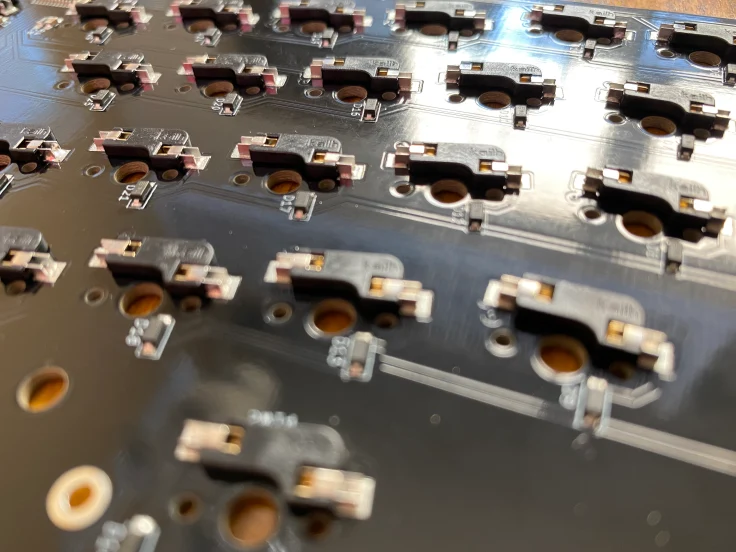
Skyloong offers a hotswap PCB with the GK75. This makes it possible to change out switches in just seconds. The sockets support 3 and 5-pin switches.

Unfortunately, the sockets come in a north-facing configuration. This means that there will be interference with cherry profile keycaps. As a result, the typing experience will be less satisfying with cherry profile keycaps.

Some of the sockets are equipped for both switches and knobs. The knobs fit along the right side of the board or can replace the escape key. Swapping the knobs won’t necessarily be as quick as changing out switches but the fact that the knobs don’t need to be soldered is nice to see.

For anyone who likes a split spacebar, Skyloong gives you the choice of both. With a few screws, you can take out the full space module and replace it with the split one. This is a simple solution where you can try both without needing to buy a totally new version of the keyboard.

The hotswappable knobs and spacebar module are unique features to see in a keyboard. However, the north-facing switches are potentially the biggest downside of this board.

Advertisements

Knobs and Media Keys

The GK75 offers media key functions both through onboard commands and with the knobs. You can swap out the knobs in six different positions. This means you can use four different knobs or just one.

The knobs have the ability to do anything from changing the volume in the middle of a game to moving through a timeline while editing a video. Whatever it is, Skyloong offers you more than enough knobs to control whatever you may need to do.

Wireless Connectivity

The GK75 offers wireless connectivity both via 2.4 Ghz and Bluetooth 5.1 with a $10 upgrade. Via Bluetooth, you can connect to up to 3 different devices.

Note with Bluetooth you will also only get 6-key rollover compared to N-key rollover. That being said, I would recommend using the 2.4 Ghz over Bluetooth as it is faster and in my testing had similar performance to a wired connection.

The GK75 comes with a 4000 mAh rechargeable lithium-ion battery. This should get you about three weeks of normal usage. If you don’t plan to use the RGB for a cleaner look you could get more than a month of use and only need to occasionally charge the board.

The GK75 offers the standard 1000 Hz polling rate. This paired with the GK75’s power saving mode helps it keep its solid battery life with good performance. If you start typing, the GK75 will immediately wake from sleep.

Advertisements

Mac Support

Skyloong and Epomaker are typically good about Mac support and the GK75 is no different. On the bottom of the board is a switch to change between Mac or Windows.

You can even use the board with an iPhone or Android although you may not have some functionality in the modifier keys.

If you plan to use the GK75 with a Mac we would recommend getting a set with Mac-specific keycaps. Most of the sets from Skyloong come with support for Mac and Windows keys. If you opt for the GK75 prebuilts then you should find extra Mac-supporting keycaps.

Backlighting and Software Support

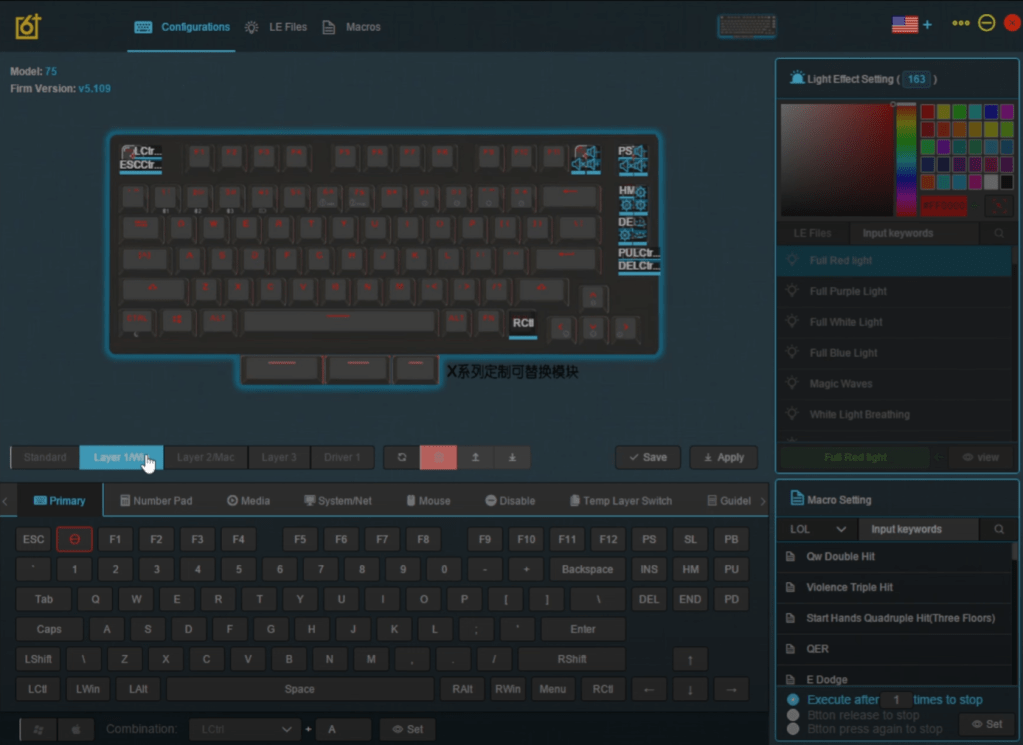
Skyloong 6+ Software for GK75 mechanical keyboard

Skyloong’s GK75 offers vibrant RGB lighting that is addressable both with the software and onboard controls. Personally, I like the lighting off with regular keycaps but if you choose to get some shine through keycaps then they will look quite good with this board.

Software is another weakness in the GK75. The Epomaker and Skyloong software looks quite dated and is pretty confusing in 2023. The 6+ software is better than offerings from Redragon but at this price point, most custom boards support QMK or VIA.

Changing the lighting requires you to scroll through a list of vague names. Editing the key functions is not very difficult but it also has a potentially confusing labeling scheme. The software does take good use of the knobs and it is worth mentioning that you can enjoy this board without the software.

That being said, I would like to see either a big overhaul of the 6+ software or a switch to VIA. Not only is VIA open source but it is very easy to use, looks good, and runs easily on any system.

Advertisements

Conclusion

Side view of Skyloong GK75 Aluminum on desk

Skyloong’s GK75 is a feature-packed keyboard that comes in a practical but efficient 75% form factor. Wireless connectivity, a collection of knobs, a hotswap PCB, and a generally easy-to-build experience make the GK75 Aluminum Kit a great option. The GK75 offers a build that will sound good with minimal work.

If you find that the aluminum build is not important to you, you can save your money and take a look at the plastic GK75 that comes in at about $100 cheaper. In fact, the plastic version of the GK75 is one of Skyloong’s best lines.

Skyloong makes fantastic boards and the GK75 Aluminum Kit is no different. Before you go out and buy the GK75 though, you should consider other options like the Keychron Q1 or Glorious GMKK Pro if you want south-facing switches.

If you are looking for a kit that just needs some switches and keycaps then I would still recommend the GK75 in many cases. The GK75 offers wireless connectivity, multiple knobs, and a split spacebar which are features that you don’t see in many other boards at this price.

If Skyloong upgraded its software and supported a PCB with south-facing switches then the GK75 Aluminum Kit would be an easy favorite over the other competition but for right now it’s just one of the options in the mix.

UtechSmart Venus Pro Mouse Review: For Those That Don’t Play FPS Titles

In the world of gaming mice, we have grown accustomed to slim, lightweight mice for FPS titles. However, the UtechSmart Venus Pro provides a package that suits those with bigger hands who want more buttons for MMO, strategy, or any other non-FPS title.

If the UtechSmart Venus Pro sounds like a potential new mouse for you, then keep reading to find out more.

The Verdict

Angled view of UtechSmart Venus Pro on desk with mousepad and RGB keyboard at night.

Rating: 4 out of 5.

The UtechSmart Venus Pro is a wireless gaming mouse that boasts a total of 19 buttons. This makes the Venus Pro an excellent choice for MMO, MOBA, and RPG titles. If you have a palm grip and medium- to large-sized hands then this mouse could be very comfortable for you.

However, the Venus Pro is also a mixed bag. The buttons and sensor may not be a problem for everyone but in FPS titles they would require a refresh to compete with the newest mice at this price point.

To compound on that, the Venus Pro is quite heavy making it harder to perform quick flicks, despite the high-quality feet. Additionally, while the RGB lighting is impressive for its price point, the software falls behind most of the competition today.

The niche design can make the Venus Pro either a great or terrible fit for you. Its ergonomic shape, vibrant RGB lighting, and numerous buttons make the Venus Pro a perfect option for the right audience. On the other hand, if you are an FPS gamer looking for the quickest response times and lightest possible weight, then the UtechSmart Venus Pro may not be the option for you.

Specifications

Length~119mm
~4.7in
Width~79mm
~3.1in
Height~41mm
~1.6in
Weight~127g
Sensor TypeOptical (100 โ€“ 16K DPI)
Polling Rate125 โ€“ 1000 Hz
Cable Length1.9m (6.2ft)

In The Box

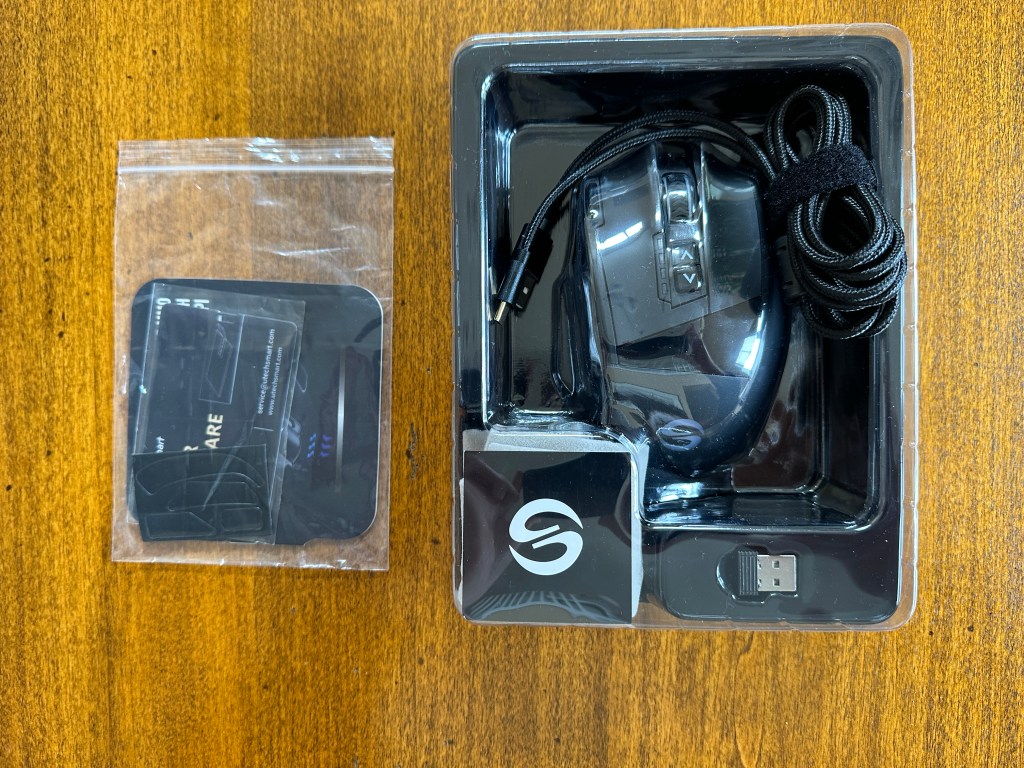
Unboxing of UtechSmart Venus Pro mouse

In the box, you will find the UtechSmart Venus Pro with a solid amount of accessories.

  • Manual: This helps explain the basics of the mouse, the functions of the software, and basic warranty information.
  • Cable: A 1.9m (6.2 ft) braided USB-A to USB-C Cable.
  • Dongle: 2.4 Ghz dongle for the wireless connection.
  • USB Stick: Attached to a small card to download the software for the mouse.
  • Sticker: A square sticker with the logo.
  • Bag: Grey-colored bag that holds the mouse if you are on the go.
  • Extra Feet: Probably not needed but you will find some extra feet just in case.

Build Quality

Angled view from right side of UtechSmart Venus Pro at desk setup.

The UtechSmart Venus Pro is constructed from strong plastic with liberal use of textured material throughout. The mouse features an all-matte black look with one portion in the palm area that is gloss plastic that, honestly, looks a bit out of place.

At just under 127g, the Venus Pro feels quite hefty for a mouse in 2023. That being said, the use of materials makes the Venus Pro feel premium.

One area that makes the weight slightly less noticeable is the feet. The Venus Pro comes with decent-sized feet, made from PTFE, that provide a smooth glide. Now you won’t get quick flicks with this mouse but it does make it better.

The Venus Pro has a standard USB-C port for charging and at the bottom of the mouse is a slot for the dongle. The slot is magnetic which makes it very easy to find the spot for the dongle, but unfortunately, the dongle does not fit flush in the slot.

Overall the mouse feels well made and that is supported by a one-year warranty. There is minimal rattle and no flex in any part of the mouse. It would just be nicer to see a lower weight.

Advertisements

Style and Comfort

Top view of UtechSmart Venus Pro on mousepad

The styling of the Venus is really what makes it unique. It has an ergonomic shape that forces all your fingers into place. The Venus is on the taller side and does have a decent curve to it. The 12 side buttons are positioned perfectly for the thumb.

The styling of the Venus Pro is perfect for a palm grip but not the best fit for fingertip or claw grips. Additionally, the mouse is designed for right-handed use. For those with smaller hands, the Venus Pro might not work too well. However, those with medium to large-sized hands should find this mouse to be a comfortable fit.

Advertisements

The main two buttons and scroll wheel are easy to find. However, since there are 12 small side buttons, it can be hard to click the right one. This is especially the case due to the lack of texture on each button. One strong element is that each row is angled differently so you can find each one.

With muscle memory, this could definitely become earlier, but I found the buttons to be more inconvenient than normal button placement in games. They could be nice to have in some slower-paced games or for work-related tasks.

The design of the Venus Pro can be either an upside or a downside. If the Venus Pro suits your hand then it could be perfect because there are not a lot of alternatives at this price. However, if you are not used to a mouse of this style, then it may take some time to get used to.

Switches and Scroll Wheel

Top view of UtechSmart Venus Pro mouse at desk setup

The UtechSmart Venus Pro comes withย 16 programmable buttonsย and 19 buttons in total. The DPI buttons, and “profile switch” button on the bottom of the mouse, cannot be programmed.

The scroll wheel is rubberized with light tactile steps. All the buttons on the top side of the mouse are clicky and feel snappy. On the other hand, the side buttons feel a bit inconsistent. Underneath the buttons are Omron switches that are rated for up to 10 million switches.

There is a button that triple clicks very quickly, but it would have been more helpful if this could be switched to a spam click button. In my experience, it is quicker to triple-click with mouse button one rather than move my finger to this dedicated button.

Additionally, the lack of forward and back buttons out of the box was frustrating, but this can be easily changed within the software.

Sensor and Polling Rate

Bottom side of UtechSmart Venus Pro mouse

The UtechSmart Venus Pro comes with a Pixart PAW3335 sensor. It offers a DPI range from 100 to 16000 with adjustment steps of 100. While the PAW3335 might be an outstanding option for mice at the $30 price point, it is average for the $50 price point in 2023.

The lack of adjustment of DPI in increments of 50 is pretty disappointing to me as I was not able to use my usual DPI. Additionally, if you aren’t looking for this mouse shape, there are plenty of mice from the likes of Glorious or Logitech that will give you better sensor performance for only about $10 more.

The Venus Pro features an industry-standard 1000 Hz polling rate. This can be changed both in the software and with the profile switch button at the bottom of the mouse.

Advertisements

RGB Lighting

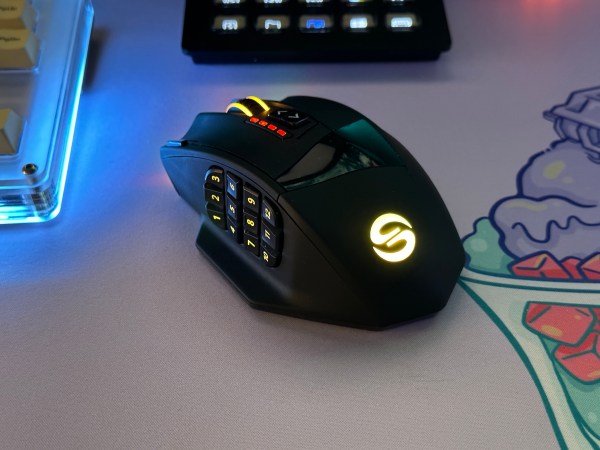
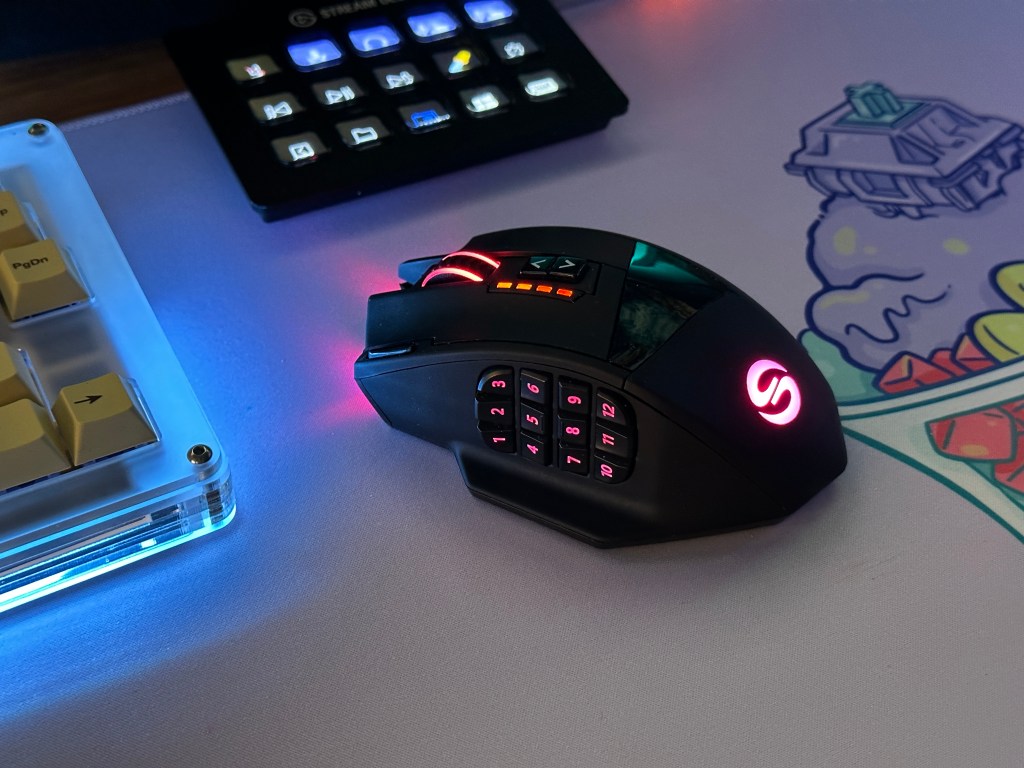
The UtechSmart Venus Pro features RGB lighting on the logo, side buttons, scroll wheel, and front of the mouse. I didn’t find the lighting to be over the top and the lighting is defused quite well. It can help add to the theme of your desk and if you don’t like it, you can easily turn it off.

The lighting also serves some functions. When plugged in, the Venus Pro glows yellow until the battery is full. When the mouse drops to 20% charge, a red breathing effect lets you know that it needs to be charged.

Additionally, four red LEDs display your selected DPI level. These will be on regardless of if the rest of the RGB is on or not.

On the bottom of the mouse, you can either turn on the Venus Pro in RGB On or RGB Off mode. RGB Off is a great way to save battery or have a more discrete look for the office. However, if you are in RGB Off mode, you won’t know that your device is low on battery until it dies.

Wireless Connectivity

UtechSmart Venus Pro mouse with 2.4 Ghz dongle

The main difference between the regular UtechSmart Venus and Venus Pro is the wireless connectivity. The Venus Pro supports 2.4 GHz wireless via a USB dongle. Note this won’t be as fast and reliable as the wireless tech from top gaming brands like Razer or Logitech, but it is certainly a step up from Bluetooth.

A 2.4 Ghz connection may perform slightly worse than wired but in my experience it did not impact me in RPG, sim, or open-world titles. Only in FPS games may you benefit from a wired or better wireless mouse but that mostly comes from the high switch latency and sensor.

The Venus Pro does not feature Bluetooth but that is pretty common for gaming mice. For travel or using the Venus on multiple devices, this may be annoying but you can store the dongle in the bottom of the mouse and take it with you.

As for battery life, the UtechSmart Venus Pro is rated for 70 hours of battery life but with RGB on at a 1000Hz polling rate, you should get about half a week of regular usage.

Advertisements

Software Support

UtechSmart Venus Pro mouse software

Generally, software is not the most important element of a gaming mouse, but it is a great way to unlock its potential. This is especially the case with all the programmable buttons. UtechSmart’s software allows you to change DPI, button mappings, lighting effects, and create macros. Battery life is also displayed in increments of ten here.

Honestly, the UtechSmart software is not the best. While it does not miss any major functionality, it lacks refinement. One key flaw is the gamery look with a non-rectangular window. Additionally, you can’t even maximize the window. Unfortunately, this software also only works on Windows, limiting functionality for anyone who primarily runs MacOS or Linux.

In the UtechSmart software, some features don’t feel as complete as other mice in the category. For example, only one lighting effect can be applied to all LEDs. Furthermore, there is only one user profile, which could be inconvenient for someone who potentially shares the mouse between different devices or people.

I will commend the fact that UtechSmart includes a USB with the software. This makes setting up the software easy and saves you from trying to find it on their website.

Advertisements

Conclusion: Is The Venus Pro Good For Gaming?

Angled view of UtechSmart Venus Pro mouse at desk setup during night

The UtechSmart Venus Pro might not offer the market’s usual hyper-lightweight, FPS-ready mouse, but it serves a distinct audience. For those who want an ergonomic mouse with tons of buttons, wireless connectivity, and quality RGB lighting, the Venus Pro is a fantastic option that won’t break the bank.

Despite the unique design, there are several flaws that come with its lower price point. You get an average sensor found in $30 mice and a click latency that makes the Venus Pro a second choice for competitive gaming.

If you like the Venus Pro but are looking for top-of-the-line performance, consider the Corsair Scimitar Elite Wireless or Razer Naga V2 Hyperspeed. They will offer more accurate sensors, lower latency, and better software if you are willing to pay double the price.

With plenty of buttons for macros, vibrant RGB, and a design that perfectly suits a palm grip, the UtechSmart Venus Pro is the ideal option under $50 for any MMO, MOBA, RPG, or simulation gamer.

Drop + Stack Overflow The Key V2 Macropad Review: A Developers’ Only Keyboard

When Drop and Stack Overflow first collaborated to release The Key macropad on April Fools, they never anticipated that it would be such a success.

With now The Key V2’s 10k sales and 20k sales between both iterations, Drop has created a useful macropad with a playful character.

Today we are looking at this fun little macropad and see if The Key V2 is the piece of character that your desk setup needs.

The Verdict

The Key V2 macropad next to a mechanical keyboard.

Rating: 4.5 out of 5.

For only $30, Drop delivers an incredibly fun and useful macropad. You get a great-looking macropad that can serve as a means of copying and pasting or anything else that you choose.

With a solid case, keycaps, and switches, Drop delivers one of their best keyboard products with great value. Additionally, it can be programmed to different functions relatively quickly.

If you want a simple macropad for something like dedicated media keys or you just find the Stack Overflow theme humorous, The Key V2 makes a great addition to any developers’ desk setup.

In The Box

Unboxing of The Key V2 macropad

The unboxing experience is pretty simple but well-packaged.

Macropad: The Key V2 comes preassembled and surrounded by some clear plastic.

Coiled USB-C Cable: You get a rubberized cable. Personally would prefer a straight cable rather than a coiled cable.

Extra Screws: You are given extra screws although I anticipate you won’t need them.

Rubber Feet: There are no feet on The Key V2 to start, but you are given four feet to place on the pad.

QR Code Card: You are given a card with a QR code with important information about setting up The Key V2.

Advertisements

Build Quality

Backside of The Key V2 macropad

The Key V2 is made from an all-frosted acrylic construction. It feels sturdy in the hand and is held together quite well with four metal screws. They include extra screws if needed and four rubber feet that you will need to attach the macropad yourself. When the feet are placed on, the pad does not move around the desk.

The macropad utilizes a right-mounted USB-C connection. Regardless of the price point, The Key V2 is well made.

Keycaps

Close up of The Key V2 macropad

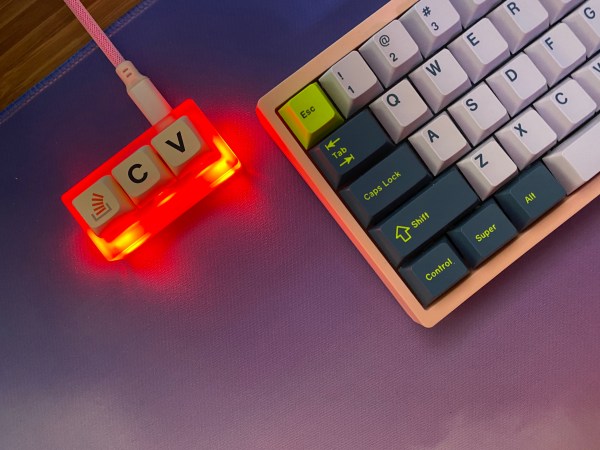
Drop and Stack Overflow’s The Key V2 comes with a set of XDA profile PBT keycaps. One keycap features a Stack Overflow logo while the other two are the ‘C’ and ‘V’ keys.

These keycaps have durable dye-sub legends meaning you don’t have to worry about the legends wearing off. The use of PBT prevents shine from developing and creates a nice texture on the top of the caps. The XDA profile that the keycaps come in is shorter than OEM profile but taller than cherry profile keycaps.

The keycaps create the playful part of the design. The use of ‘C’ and ‘V’ keys adds to the joke of copying and pasting from the site Stack Overflow.

Overall the keycaps are good quality and add a lot of character to this macropad.

Advertisements

Switches

Drop opted to put Kailh Black Box switches. They feel pretty smooth stock and sound pretty decent as well. There is no significant ping and the acrylic case helps the sound too. The Black Box switches also come with clear top housings to help the lighting shine through them better.

Although the stock switches are 3-pin, The Key V2’s PCB supports both 3-pin and 5-pin via hotswap. This means you can change out the switches in Drop’s macropad in under a minute to almost any mechanical switches that you would like.

If you wanted to use The Key as just a switch tester you could because of the hotswap PCB. It also allows for customization to be a lot easier if you say, prefer tactile switches in your macropads.

Backlighting

Angled view of The Key V2 macropad with RGB lighting on

To pair with the frosted acrylic case, you will see five LEDs on The Key V2. This was the main improvement over The Key V1 which did not have LEDs.

The LEDs paired with the translucent look of the acrylic create a cool glow. The LEDs are quite bright with the stock switches. I found that putting some opaque switches in the macropad still looked great and aren’t uncomfortable for me. For most people, I anticipate this will not be an issue.

The lighting makes The Key V2 look quite good. The only change that I would suggest is having more LEDs on the bottom to have a more even distribution of the lighting.

Advertisements

Software Support

QMK software ready to be used

While The Key V2 does not offer the ease of use of software like Razer Synapse, it does still use a favorite among keyboard enthusiasts: QMK. QMK is an open-source software that is quite powerful. It is perfect for all your lighting and button mapping changes.

Although the board has a default mapping of ‘Ctrl,’ ‘C,’ and ‘V,’ you can change this to various other options. You can switch the function of the keys to have media keys, quickly open apps, create macros, have additional keys for editing, add more navigation keys, and much more.

Although this software may seem intimidating for people who have minimal experience with keyboards, there is actually a lot of information out there about how to use it and it has grown easier to use as more updates have been released.

While it is nice to see VIA support for custom keyboards and macropads, QMK is still more than acceptable and provides a good experience. It is not plagued by the bugs and bloatedness of software from big gaming brands like Corsair or Logitech.

Conclusion

The Key V2 in front of its box with the lines "Good artists copy. Great artists steal. Greatest artists copy, then paste."

In the niche world of macropads, Drop delivers arguably their best-value keyboard product with The Key V2. You get bright RGB lighting, a solid build, durable keycaps, decent stock switches, and QMK software support.

Drop and Stack Overflow’s The Key V2 is a great addition to the setup of a programmer, for a playful touch and some function too. You can have dedicated media keys or macros while getting laughs from your coworkers.

If you liked this review, check out some of our other keyboard content and if you’re curious about other fun keyboard projects, check out our vendor list.

Advertisements

Royal Kludge RK84 Pro Review: Heft and Value

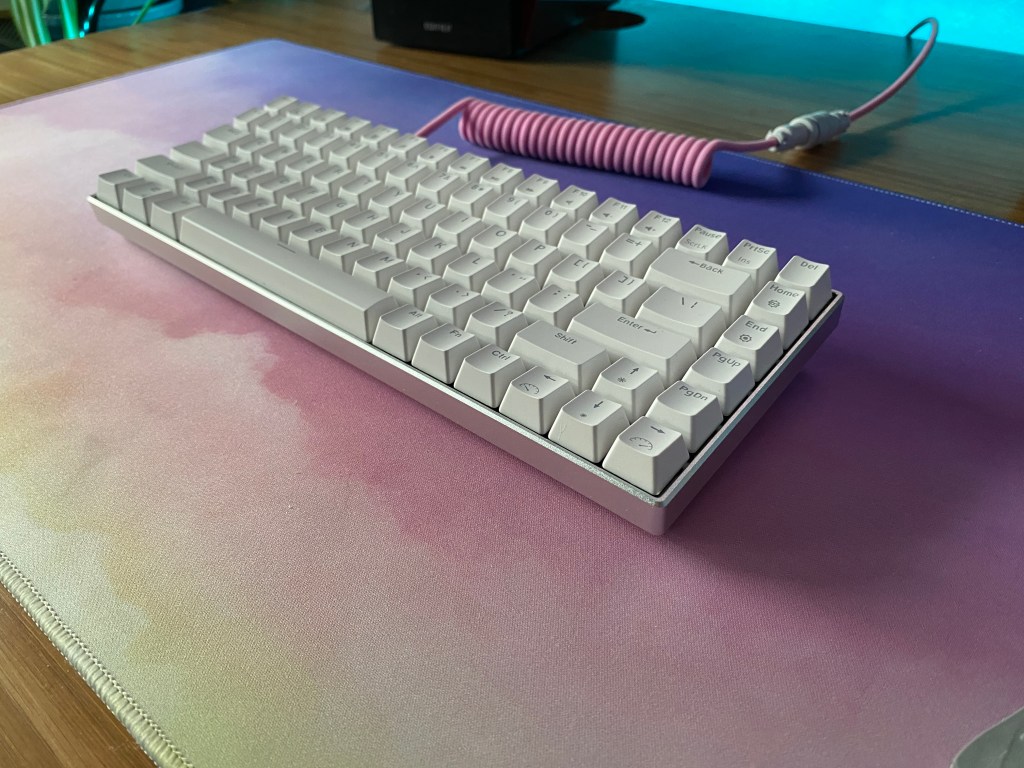
Royal Kludge is a peripheral manufacturer that recently has focused on making value prebuilt keyboards. With their RK84 Pro, they provide quality materials at a competitive price point.

The Royal Kludge RK84 Pro is a 75% mechanical keyboard that offers an aluminum case, wireless connectivity, and a hotswap PCB for modability.

So if the RK84 Pro sounds interesting to you, keep reading to see if this board could be the right one for you.

The Verdict

Rating: 4.5 out of 5.

The Royal Kludge RK84 Pro is a 75% mechanical keyboard that comes with an all-aluminum case, a hotswap PCB, wireless connectivity, bright backlighting, software support, and MacOS support. You get all this for a competitive price that makes the RK84 Pro a star option to consider in this price bracket.

Regardless of if you want to use this keyboard for gaming, at the office, or as a way to get into the mechanical keyboard hobby, the RK84 Pro is a solid choice. The only potential downsides are the under-lubed stabilizers and lack of PBT keycaps.

If you want a board with a ton of features, a solid build, and incredible value, the Royal Kludge RK84 Pro is certainly a good option to go with.

In The Box

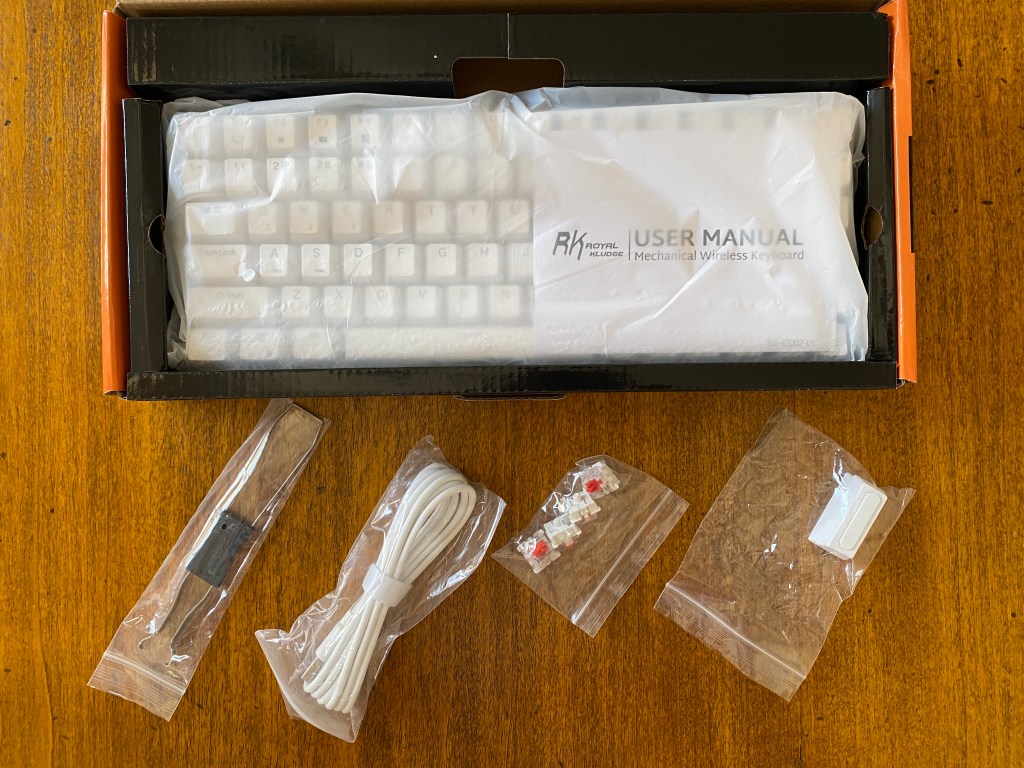
In the box with the RK84 Pro, you will receive a few extra items to add to your overall experience.

USB-C Cable: This is just your standard rubberized cable. This is mostly useful for gaming or charging due to the wireless connectivity of the board. The cable also is about 6 feet long.

Keycap and Switch Puller: You get a keycap and switch puller in one. It is not the best one that I have seen included in the box but certainly isn’t the worst. It gets the job done without issues.

Extra Switches: Some extra switches are included in case a switch ever breaks. They will match the switches in your board.

Add-on Feet: If you would like to raise the level of height on the board, some feet are included that magnetically attach to the bottom of the board.

Documentation: There is a sheet to explain macro functions and answer any basic questions you may have about how to use your board.

There is nothing to complain about on the packaging front and everything is organized nicely.

Advertisements

Build Quality

The factor that gives the RK84 Pro the pro name is its build. The RK84 Pro comes with an all-aluminum case with thin bezels and a silver look.

The board feels quite hefty at comes in at 1.08 kg (2.37 lbs). You get a rigid build and an audible thunk when you place this board down on your desk. If a plastic build would be adequate for you then you can save about $20 and opt for the standard RK84.

On the bottom of the board are 4 large rubber strips to keep to board from sliding around. There are no flip-out feet but there are magnetically attached feet included in the box. The stock typing angle is pretty comfortable so for most people you won’t need any feet.

The RK84 Pro has a left-mounted USB-C connection. On the bottom of the board are two switches. One to turn on the board and the other to switch between 2.4GHz and Bluetooth wireless.

At this price point, the RK84 Pro has one of the best builds of any prebuilt keyboard. If you want something more refined then you will want to go the custom keyboard route, but compared to Keychron or gaming brands, the RK is a solid option.

The Keycaps

The RK84 Pro comes with the same white ABS shine-through keycaps that are on its non-pro counterpart. These keycaps are in the OEM profile and feature a slight sculpt that makes them more natural to type on than laptop keyboards. They also offer sub-legends to show the secondary functions of the keys.

The keycaps allow a decent amount of light to come through, while the double-shot legends mean the letters will not fade away. The legends look clean and don’t have any gamery font. This means the RK84 Pro can go in a setup for work or gaming.

The caps are about what I would expect on a pre-build keyboard of this price. In my experience, they did not develop shine, but for most people, you may find shine developing after a few months. These keycaps feel and sound pretty average but they are better than some budget ABS sets from Logitech and Keychron.

Advertisements

The Switches and Stabilizers

The only choice you make when buying the RK84 Pro is what switch to put in your board. You can get either a linear, tactile, or clicky switch.

RK RedA light-weight linear switch with a smooth travel
RK BrownA medium-weight tactile switch with a light tactile bump
RK BlueA medium-weight clicky switch. It has a loud sound and sharp tactility

Royal Kludgeโ€™s RK switches may not be from a large switch manufacturer, however, having tried all three, they are pretty decent considering this price point. The RK Red switches aren’t the smoothest red switch I have tried but also not the worst. Also, the brown switches actually have a noticeable bump compared to Gateron and Cherry Browns. Their blues feel just about the same as any other blue switch.

When compared to after-market switches, the RK switches are no competition but they are a good stock offering at this price point. The inclusion of plate foam makes the board not sound too hollow or pingy either. That being said, the RK84 Pro has audible ping compared to its plastic case counterparts.

For stabilizers, Royal Kludge offers slightly lubed stock stabs. They have some rattle stock but they aren’t unbearable and certainly ok if this is your first mechanical keyboard.

If you are willing to lube the switches or stabilizers, the RK84 Pro actually has a decent amount of potential. The stock sound may be the weakest aspect to a keyboard enthusiast but it is still more than passable.

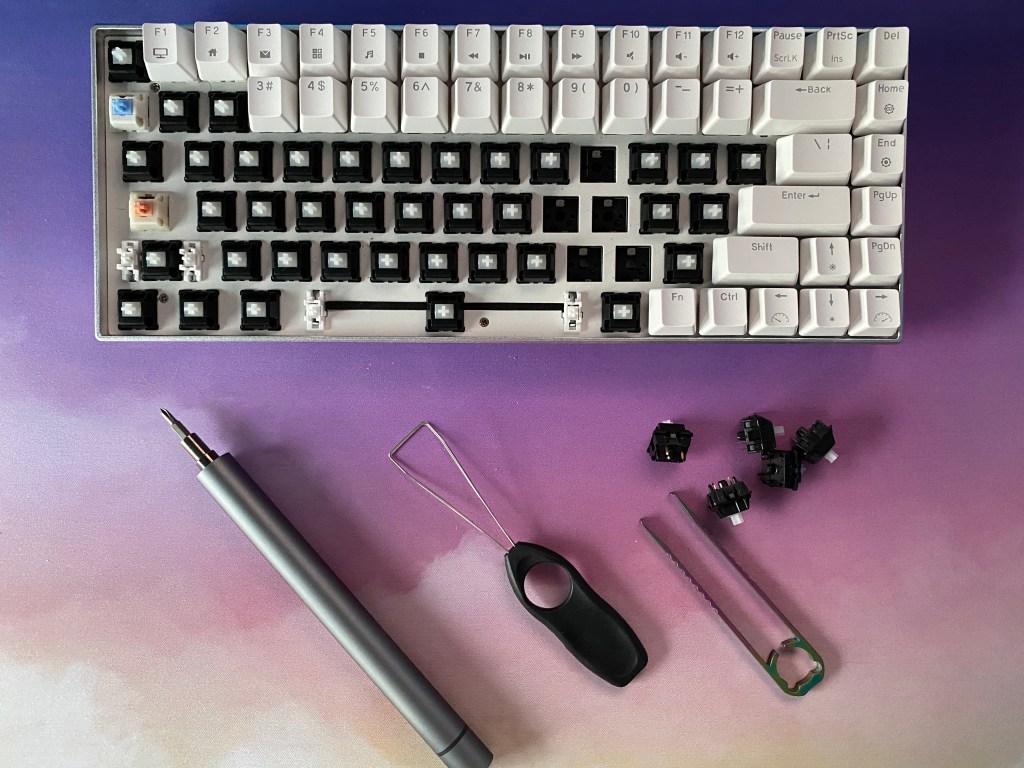
Hotswap PCB

The RK84 Pro features a hotswap PCB that supports both 3-pin and 5-pin switches. This means that almost all mechanical switches will fit in this board.

The sockets come in a north-facing configuration. That means cherry profile keycaps will face an issue called interference. Although switches will still activate, when pressing down on cherry profile keycaps, they will make contact with the housing of the switch before they bottom out. What that means is if you plan to use cherry profile keycaps, you may lose out on some of the satisfaction of a mechanical keyboard.

Overall a hotswap PCB is a great feature for anyone that wants to mod their keyboard or try out different switches. If you would like to tune your stabilizers or play around with the foam in the board then you can do so too.

Advertisements

Wireless Connectivity

Like the Royal Kludge RK96 or RK84, the RK84 Pro allows for three options of connectivity. In addition to the wired connection, you can use the included dongle for the 2.4GHz connection or connect to up to three devices via Bluetooth 5.0. I would recommend using the 2.4 GHz connection over Bluetooth as it is faster and seemed to have similar performance to a wired connection.

The dongle for the 2.4GHz connection is magnetically attached to the bottom of the board so you don’t have to worry about losing it when on the go. It is nice that you have so many options for connectivity with this board so you can create a clean wireless setup.

The RK 84 Pro includes a 3750mAh rechargeable lithium-ion battery that is rated for up to 200 hours with lighting off. I found that I was still able to get about two weeks of usage with lighting, which is quite respectable. It takes about six hours to fully charge the board from empty.

To conserve battery, the RK84 Pro will go to sleep when you are not using the board. However, the board will wake up instantly when you start using it again.

Advertisements

Mac Support

If you are a Mac user then the RK84 Pro will still work with your board. Just switch the board’s mode with the function and s keys.

If you want to use this board with a tablet or phone, you may not get all the onboard functions but the board will still work like a regular keyboard.

Backlighting and Software Support

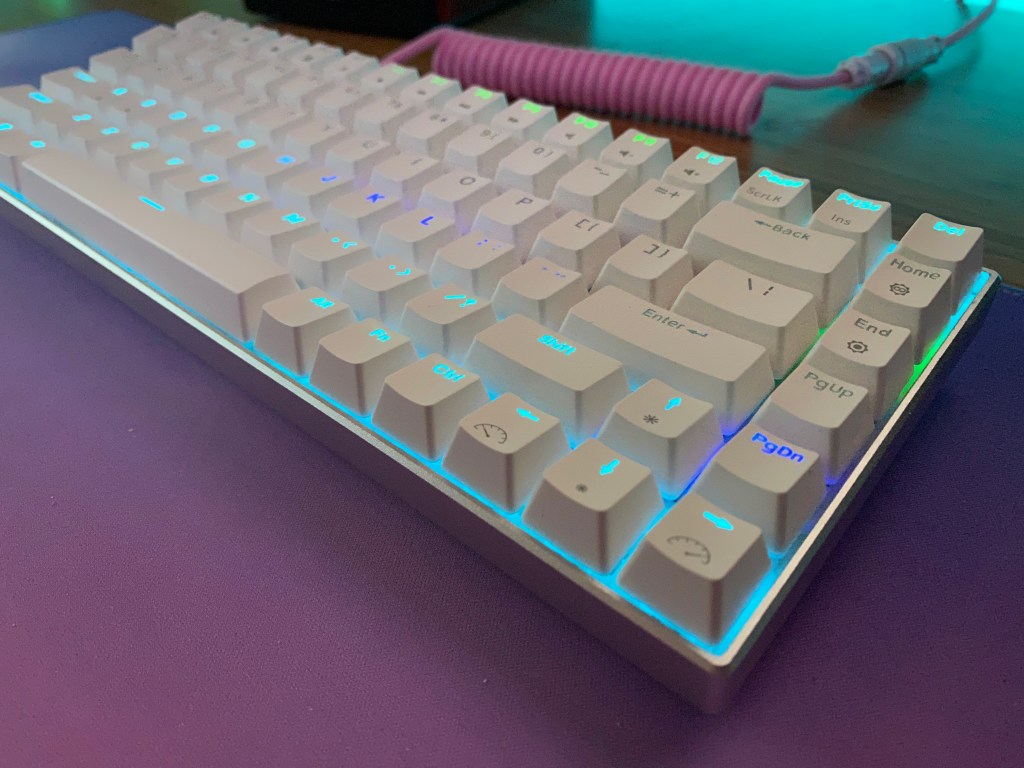
Royal Kludge’s RK84 Pro offers bright RGB lighting. The lighting can be controlled both through software and with onboard presets. If you want a cleaner look you can change the lighting to an all-white look or just turn the lighting off because the keycaps are easy to read even without lighting.

Compared to other options at the same price, the RK84 Pro is brighter than the Keychron K6 but about the same as the Epomaker GK68XS.

The software does the job. It is not as simple to use or clean looking as Razer Synapse or VIA but it has all the needed functions. You can change between lighting effects, create macros, and switch profiles. The software can also save a profile to the board so you can keep your settings on different systems.

Conclusion

Royal Kludge’s RK84 Pro is a solid competitor in the $80 to $120 price bracket. With various options from Keychron, Vissles, Epomaker, and new custom keyboard options, the RK84 Pro delivers a variety of features that make the board a great option for a variety of audiences.

The wireless connectivity and sleek design make the board a great option for the office. The RGB lighting and software support might make this a good option for a gaming setup. For those that want to modify their keyboard, the hotswap PCB makes this board very easy to change switches and make changes.

It would be nice to see better-lubed stock stabilizers and PBT keycaps but if you would like to modify your keyboard then you will end up replacing these components anyway.

We hope that you enjoyed this article and you find the right keyboard for your setup. For more, check out our other keyboard reviews for more content.

Advertisements

Royal Kludge RK96 Review: Get This Over A Full Size

Royal Kludge is a gaming peripheral company that is known for making mechanical keyboards with incredible value. The Royal Kludge RK96 continues with this same reputation.

The RK96 is a 96% mechanical keyboard that offers wireless connectivity, media controls, and an efficient layout while still maintaining all the important keys.

Today we will take a deeper look at the Royal Kludge RK96 and see if this board is the right one for you.

The Verdict

Royal Kludge RK96 mechanical keyboard next to a mouse on a desk.

Rating: 4.5 out of 5.

If you are looking for efficiency while maintaining function, Royal Kludge delivers a great value pick with their RK96. The RK96 gives you all the abilities of a full-size keyboard while taking up less space. For under $80 you get wireless connectivity, a hotswap PCB, bright backlighting, software support, and MacOS support.

These features make the board incredibly versatile and useful regardless of whether this is a keyboard for gaming, work, or as an entryway into the mechanical keyboard hobby. You won’t get an aluminum build or PBT keycaps but you will still get a solid build for the price.

If you want a board with a ton of features and a great price, the Royal Kludge RK96 may be the right board for you.

In The Box

Unboxing of Royal Kludge RK96 mechanical keyboard.

In addition to the RK96, Royal Kludge gives you a few other accessories to improve your experience.

USB-C Cable: You get a rubberized cable included with the board. Due to the wireless connection, this is mostly useful for gaming or charging. The cable is about 6 feet long.

Keycap and Switch Puller: You get a keycap and switch puller in one. This is pretty decent and gets the job done without issue.

Extra Switches: In case any switch ever breaks, you get a few extra switches. They will be the same kind as the ones in your board.

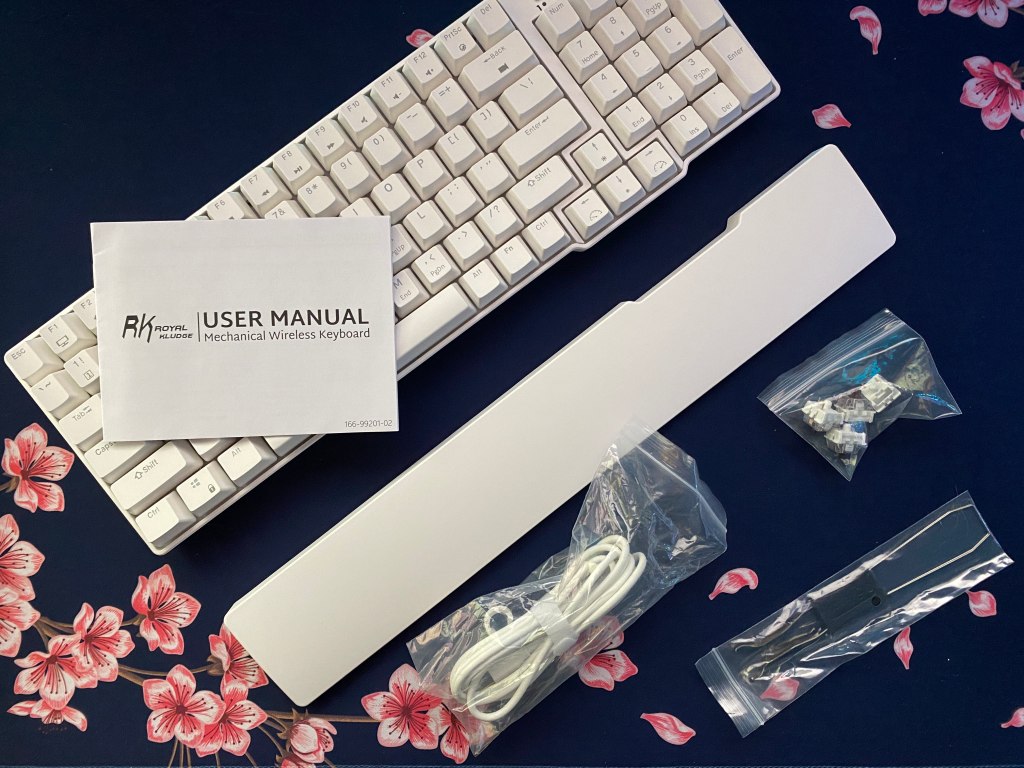
Plastic Wrist Rest: If you would like a wrist rest then the idea of one being included is nice. That being said the included one is nothing special. It is made of hard plastic and stretches the width of the board.

Documentation: There is a sheet that helps explain all the layers and how to set up your keyboard.

Overall the packaging is well done and keeps everything secure.

Advertisements

Build Quality

Zoomed in view of Royal Kludge RK96 mechanical keyboard.

The Royal Kludge uses an all-plastic build with thin bezels all the way around. You can get the RK96 in both black and white colorways.

The weight comes in at about 0.94 Kg (2.08 lbs). For its size, the board feels on the lighter side but still feels quite solid. The board features a steel plate which gives it a rigid build and a decent amount of its weight.

The RK96 allows for three heights with two levels of rubberized flip-out feet. Additionally, there are four strips of rubber on each corner of the board so the RK96 isn’t sliding around on your desk.

The board offers a left-mounted USB-C connection at the front with two switches at the bottom of the board. One switches between 2.4GHz or Bluetooth wireless and the other turns the board on.

At this price point, the RK96 delivers a solid experience. If you would like an aluminum case or a heavier weight then you will need to look at a board at or above $100 though.

The Keycaps

Close up of keycaps on Royal Kludge RK96 mechanical keyboard.

The RK96 features ABS shine-through keycaps that are color-matched to the board. The keycaps come in OEM profile and also feature sub-legends to show the secondary functions of the keys. The OEM profile is common with prebuilt keyboards. They are sculpted to make typing more comfortable but are taller than something like a laptop keyboard.

The ABS keycaps are average. They are nothing special but better than many other gaming keyboards. Like most budget ABS sets, these keycaps will develop shine after a few months of usage. However, these keycaps seem to hold up better than some other budget ABS sets I have used from Keychron, Corsair, and Logitech.

The keycaps let in a decent amount of light and the double-shot legends mean the letters will not fade away. The legends don’t have a gamery-looking font, allowing the RK96 to fit in both at home and in the office.

Advertisements

The Switches and Stabilizers

Close up of RK Brown switches on a mechanical keyboard.

Royal Kludge offers three different switch options with their RK96. You can either get a linear, tactile, or clicky switch.

RK RedA light linear switch with a smooth travel
RK BrownA medium-weight tactile switch with a light tactile bump
RK BlueA medium-weight clicky switch. It has a loud sound and sharp tactility

Royal Kludge’s RK switches may not be from a large switch manufacturer, however, they are pretty decent considering this price point. The tactility of their brown switches is actually noticeable compared to Gateron or Cherry Browns. Also, their RK Red switches aren’t the smoothest switch in the world but are smoother stock than again Gateron or Cherry’s Red switches. The inclusion of case foam makes this board not have any case or plate ping too.

All that being said, these aren’t anything groundbreaking. When compared to any more premium after-market switch, I would take those over these RK switches. Additionally, I cannot speak to the reliability of these switches but extra switches are included in the box and I had no issues in the first few months of usage.

As for stabilizers, they aren’t amazing but aren’t terrible either. They are not the best stock stabs I have tried but didn’t have an unbearable amount of rattle either. As someone who is used to more premium, I felt the need to mod the stabilizers, but for most people, they should sound and feel adequate.

If you are willing to lube then you could make the switches sound pretty decent without buying a new switch. Most of the weakness in the switch is the springs sounding quite pingy, but after lubing most of this should go away. Again, however, most people will find the switches and stabs quite good.

Hotswap PCB

Royal Kludge RK96 mechanical keyboard with tools on a desk.

The RK96 comes with a hotswap PCB that supports both 5-pin and 3-pin switches. This is a fantastic feature for those who want to mod their keyboard or just try out different switches. The support for 5-pin switches means that almost all mechanical switches will work with the RK96.

The sockets come in a north-facing configuration. This means that cherry profile keycaps will face an issue called interference. This will cause cherry profile keycaps to not bottom out properly. While switches will still activate normally with cherry profile keycaps, the interference will take away from the satisfaction of the board.

Overall the hotswap PCB is a great feature to have. If you want to tune your stabilizers, change your switches, or add additional foam to your keyboard then you can take out the existing switches in just a couple of minutes.

Advertisements

Wireless Connectivity

The RK96 allows you to connect up to three different devices with Bluetooth 5.0. If you don’t want to use Bluetooth you can also opt to use the 2.4GHz connection. This will be faster and more reliable than Bluetooth. These both make for fantastic options to keep your setup clean. The dongle also has a magnetically attached spot at the bottom of the board so you don’t have to worry about losing it.

Royal Kludge includes a 3750mAH rechargeable lithium-ion battery that is rated for up to 250 hours with lighting off. In my experience, I was able to get two weeks of usage out of the board with lighting enabled. If you game wired frequently, you may never need to take time to charge the board either.

To save power, the board will go into a low-power mode. If you start typing, the board will wake up almost instantly though.

I still would recommend using a wired connection while gaming, but during casual gaming I found the dongle to work perfectly fine. Overall I didn’t have any issues with the wireless connectivity.

Mac Support

Although the RK96 does not come with any mac specific keycaps, it still offers MacOS support. To switch to Mac press the function and s keys.

Not all the onboard functions will work on iOS or even Android but the main function of the keyboard works perfectly fine.

Backlighting and Software

Close up of Royal Kludge RK96 mechanical keyboard with RGB lighting enabled.

The Royal Kludge RK96 offers blue lighting that can be controlled both onboard and within the software. The lighting is decently bright and makes the letters easy to read both during the day and at night.

The software isn’t simple or clean but it does the job and can be understood after a few minutes of playing around with it. The software will allow you to choose between about 30 different lighting effects, create macros, and switch between different profiles. Note the software will only save one profile to the board, so you may want to keep it installed to make changes.

Advertisements

Media Keys and USB Passthrough

Close up of scroll wheel and mute switch on Royal Kludge RK96 mechanical keyboard.

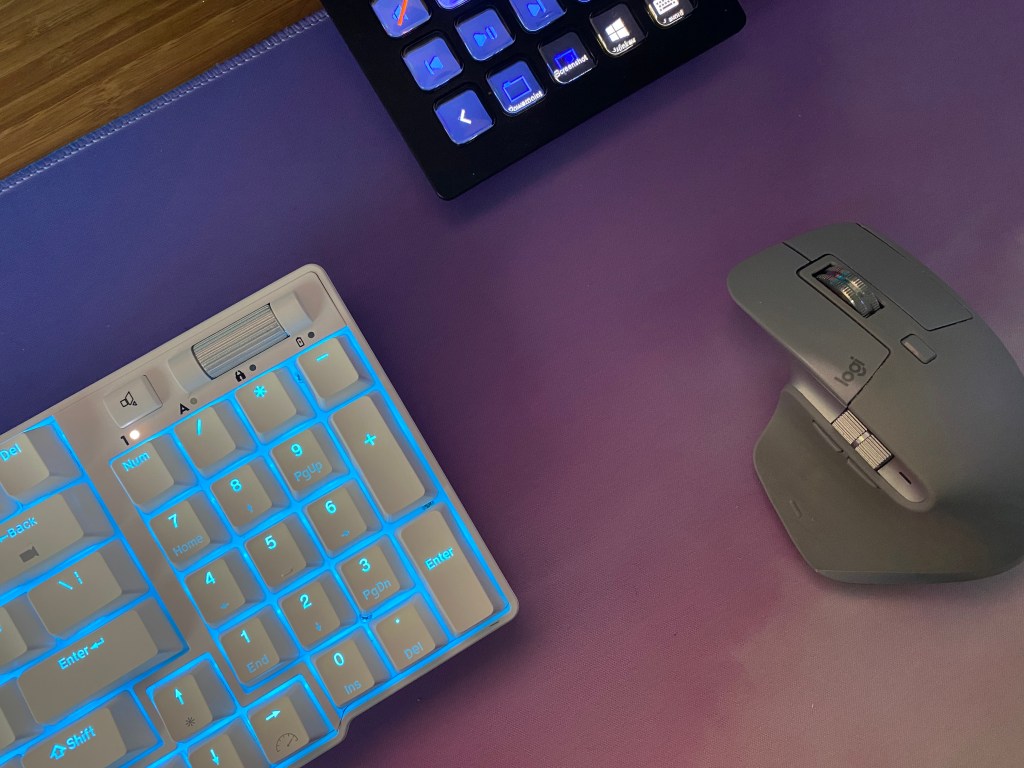
If you want to control your volume on the fly, the RK96 features a textured aluminum scroll wheel and a mute button. This is a great addition to quickly change volume in the middle of a game or if an ad comes on in the middle of a podcast.

Additionally, next to the USB-C port, sit two USB 2.0 ports. This is good for plugging in a flash drive or maybe an additional macro pad. This makes for a welcome addition, especially in laptop setups where USB ports are already scarce. Unfortunately, the ports are disabled when in wireless mode though, making this feature often useless.

Conclusion

Angled view of Royal Kludge RK96 mechanical keyboard on a desk.

The sub $100 market has been a great area of growth in the past few years and Royal Kludge’s RK96 is another great addition. It offers a ton of features and great potential if you want to mod the board too.

You get bright backlighting, media controls, wireless connectivity, a hotswap PCB, and many more features. Additionally, you get the function of a full-size keyboard with a numpad without taking up as much space with the more compact 96% form factor.

The board doesn’t have any major downsides for the price point and honestly is impressive on many fronts. In fact, the RK96 may just be the best 96% out now at its price point, especially if you can find it on sale.

We hope that whatever your needs may be, you can find the right keyboard for you. If the RK96 does not suit your needs or preferences, maybe check out some of our other keyboard reviews for some other potential options.

Advertisements

Vissles V84 Review: The Keychron Killer?

Vissles is relatively new to the mechanical keyboard space. However, their V84 75% mechanical keyboard gives the impression that they have experience in the world of keyboards.

The Vissles V84 is a mechanical keyboard that delivers Bluetooth and a decent stock sound all in an efficient 75% layout.

Today we will take a deeper look at the Vissles V84 and see if this board beats out the competition.

The Verdict

Vissles V84 mechanical keyboard sitting on a desk with a mouse and speakers.

Rating: 4 out of 5.

The $100 price point has become a very competitive segment in the past few years. What was once an easy referral to one of Keychron’s K series boards is now matched by many options, including Vissles new V84.

The V84 improves on some of Keychron’s issues and offers a solid overall package that might just be the best option at this price point. You get solid RGB lighting, a painless Bluetooth 5.1 connection, a hefty feeling build, and a decent stock sound experience.

The V84 gives you a quality stock experience but with its hotswap PCB, you can easily modify the board for a better sound and feel. You can choose between a few different switch and keycap offerings too. Additionally, Mac support also makes the V84 more versatile.

If you want a board with a ton of features and a solid competitor in the space, the Vissles V84 is a solid value offering. Regardless if you are working from home, in the office, or gaming the Vissles V84 could be the right option for you.

Note: Before March 31st you can get an additional $10 discount by using the code “V84” if you buy from Vissles website.

In The Box

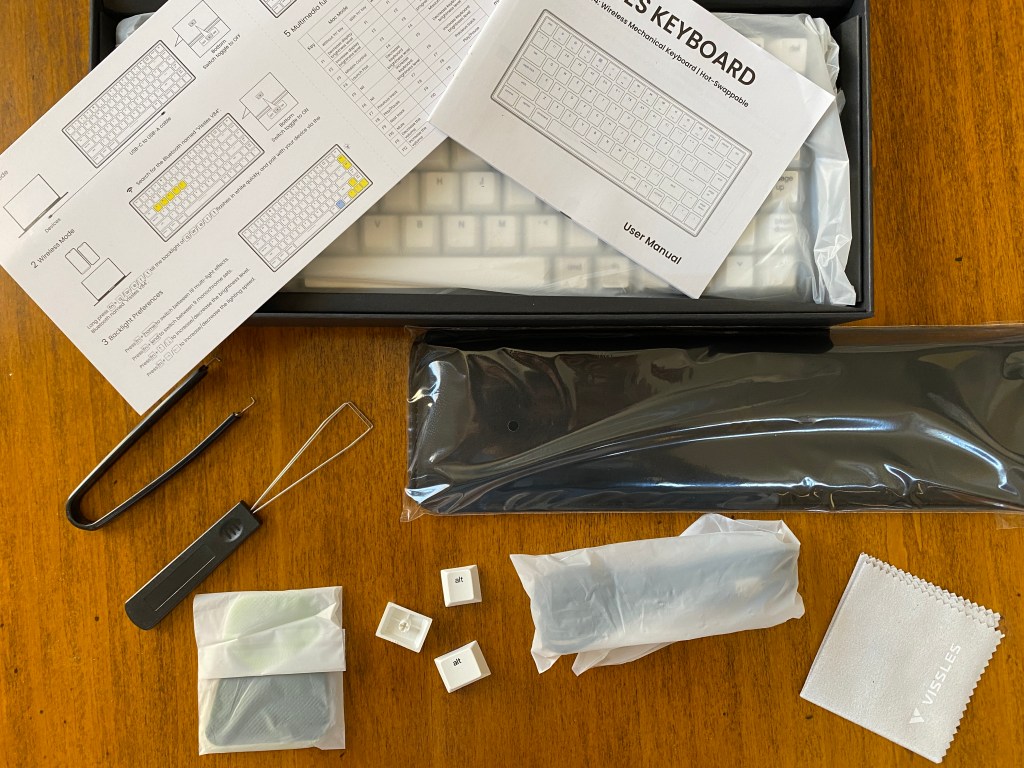
Unboxing of Vissles V84 mechanical keyboard

Besides the keyboard, Vissles gives you a variety of accessories to add to your experience with the V84.

USB-C Cable: You get a rubberized cable included with the board. You will mostly need this if you are charging the board or gaming.

Keycap Puller: If you ever want to mod the keyboard or you are just cleaning it, a wired keycap puller is included.

Switch Puller: You are also given a switch puller to change out switches whenever you would like. Often hotswap keyboards include pretty useless switch pullers but this one I would use while working on other keyboards.

Mac Keycaps: If you are a mac user, mac specific keycaps are provided to go along with the mac support of this keyboard.

Wrist Rest: If you are someone who likes wrist rests or is not used to the height of mechanical keyboards, the pleather wrist rest is a great addition for you.

Microfiber Cloth: This is great for cleaning the board. Plus it’s always nice to have another microfiber.

Grips with Adhesive: Honestly I didn’t find much use for these but it looks like you can just attach these to the bottom of the board if you would like.

Documentation: There is a sheet that shows you all the macros and keyboard commands along with a user manual with all the information to help you get started.

Overall the packaging is quite nice. It is one of the nicest experiences I have had at this price point and the accessories add to the stock experience of the board.

Advertisements

Build Quality

Angled view of Vissles V84 mechanical keyboard sitting on a desk

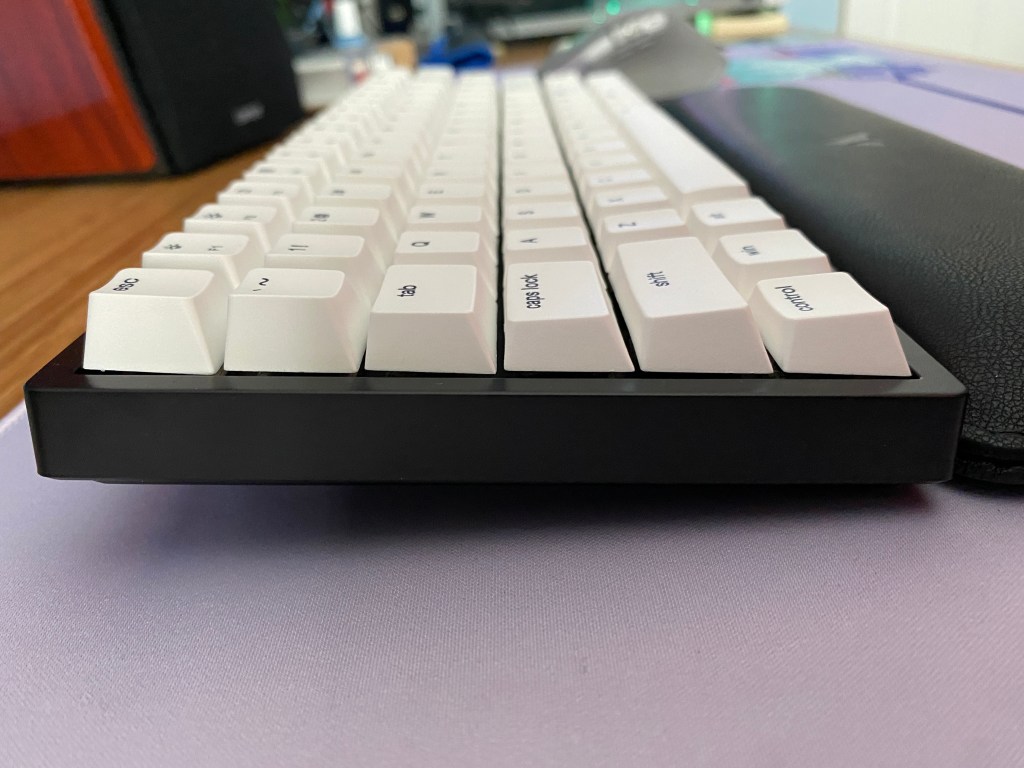
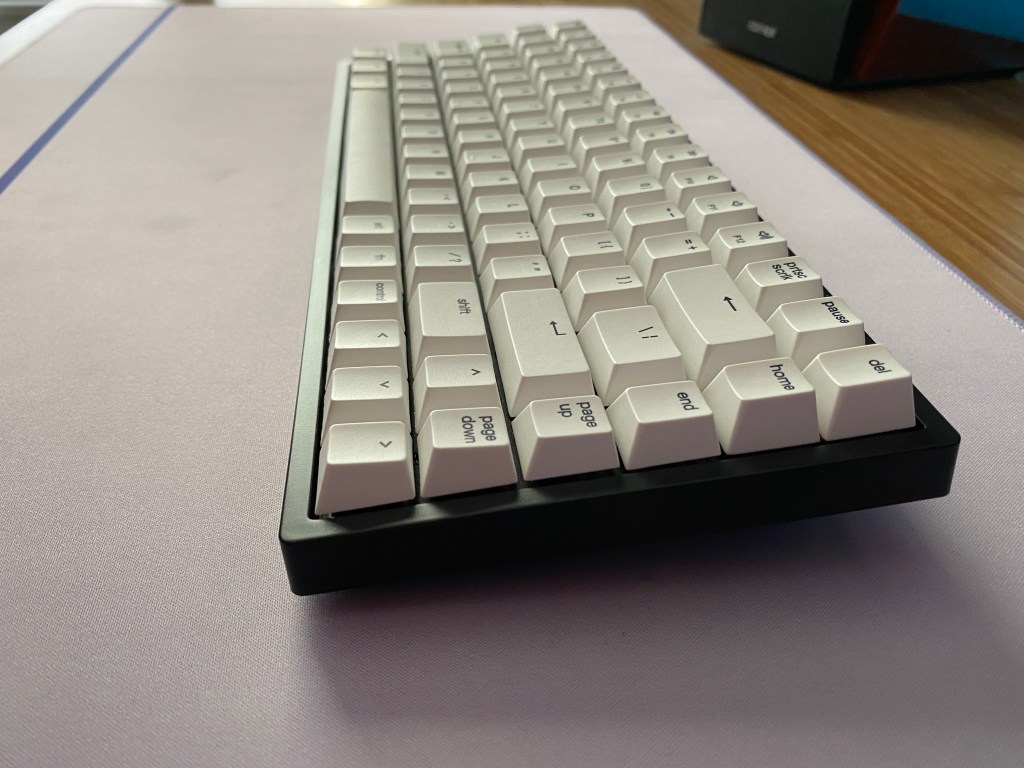
The Vissles V84 offers a dense all-plastic construction with a blacked-out look. The board has a moderate weight at about 0.82 Kg (1.82 lbs). Despite the plastic construction, the weight of the board still makes it feel quite hefty. In the hand, it feels more premium than most gaming keyboards at this price. Vissles also opted to put a removable plastic bezel around the sides of the board to improve the look of the board.

Unfortunately, competitors at the same price point are able to achieve the same look but with better materials like aluminum. The plate appears to also be plastic but feels quite solid and with a tray mount system, it creates a firm typing feel.

The V84 offers a 6-degree typing angle but comes with strong magnetic feet for more adjustment. Also on the bottom are four rubber feet that make the board only move around when you want it to.

The board utilizes a right-mounted USB-C connection along with a button on the bottom of the keyboard to turn on the keyboard for wireless connectivity.

Although there is no use of metals to be found on this board, the Vissles V84 feels more solid than other keyboards in the price segment such as the Keychron K6 or gaming boards from Corsair or Logitech.

Advertisements

The Keycaps

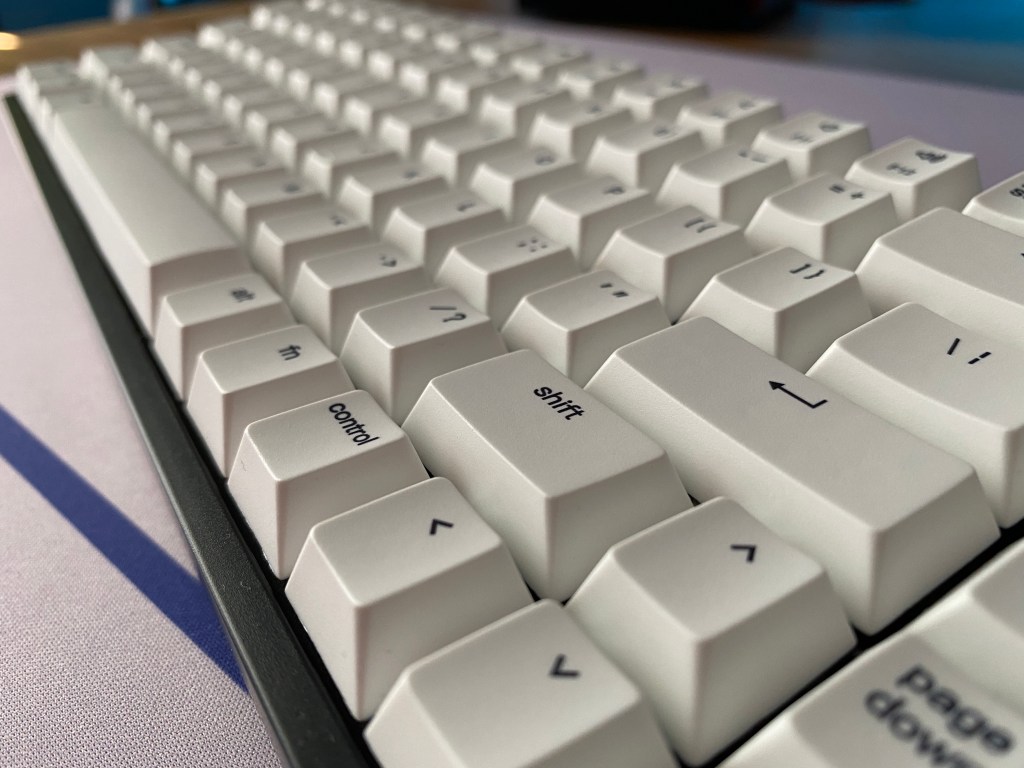
Close up of keycaps on Vissles V84 mechanical keyboard

Depending on what version of the keyboard you purchase, there are two options for switches. There is a white PBT set in cherry profile and a grey ABS set in OEM profile with shine-through legends. The PBT option of the board will cost about $10 more but also comes with better switches. The ABS keycaps are the same keycap set offered on Keychron’s K series boards.

ABS material will develop shine more quickly than PBT keycaps. However, in my experience, these keycaps usually don’t develop much shine for the first few months of usage. The shine will come from the natural greases and oils of your hands. The OEM profile that they come in is the standard among pre-build keyboards. Since these keycaps are also shine-through, if you do care about RGB lighting then I would recommend getting the ABS keycaps with your Vissles V84.

The PBT keycaps, on the other hand, are thicker, sound better, and look more durable. Unfortunately, however, I don’t recommend the PBT keycaps for one main reason. The Vissles V84 offers north-facing switches, what this means is that certain profiles of keycaps are not fully compatible with switches. This is the case with the Vissles V84 and cherry profile keycaps. As the keycaps are pressed down, the switches are not able to bottom out. Although the switches will still activate your key presses. The satisfaction that comes with mechanical keyboards goes away with this issue.

For this reason, I would save your money and go with the ABS keycaps. Then you can upgrade your keycaps to something in the MT3, XDA, or DCX profiles. For most people, the ABS keycaps are already a decent starting point so there is no need to worry about upgrading your keycaps unless you are interested in modifying your keyboard.

Advertisements

The Switches and Stabilizers

Close up of switches on Vissles V84 mechanical keyboard

The switches are slightly disappointing for the price. It would have been nice to see some Cherry or Gateron switches. Instead, you can either choose from a selection of Outemu switches or Vissles’ own VS II switches. If you opt to get the Outemu switches you can choose from a linear, tactile, or clicky option, while Vissles’ VS II is a linear switch.

Vissles VS IIA prelubed, light linear switch with a smooth travel
Outemu BlueA medium-weight clicky switch. It has a loud sound and sharp tactility
Outemu Brown
A medium-weight tactile switch with a light tactile bump
Outemu RedA light linear switch with a smooth travel

Outemu typically provides switches for budget boards around the $50 price point or less. They are quite scratchy and don’t provide the best experience. In contrast, the VS II switches are prelubed and after a few days of usage feel pretty smooth. They aren’t as smooth as some higher-end linear switches, but they feel and sound better than the Outemu offerings.

The VS II switches are advertised as being silent switches. Despite them being quieter than Outemu switches, as they are lubed, they will not be as quiet as silent switches. They should be quiet enough for most office settings though.

As for stabilizers, they come prelubed and sound as good, if not better, than most of the competition at this price point. They sound about as good as Keychron’s options and better than most big gaming brands or companies like Redragon or Royal Kludge.

One of the best things about this keyboard is the sound. The stabs being prelubed as well as the inclusion of foams into the case of the board provide a full sound with no significant ping.

Hotswap PCB

Vissles V84 mechanical keyboard on a desk with screws and tools

As mentioned previously, the Vissles V84 comes with a hotswap PCB. The PCB supports 5-pin switches in a north-facing configuration. The sockets supporting 5-pin sockets mean that almost all mechanical switches will work with this keyboard. Again the north-facing sockets do prevent you from using cherry profile keycaps with this keyboard though.

Overall this is a great feature to have. If you want to change your switches, tune your stabilizers, or add additional foam to your keyboard. If you want to try out different switches to find your preference or just need to replace a switch that is broken then the V84’s hotswap PCB allows you to change out switches within just a few seconds.

Advertisements

Wireless Connectivity

One of the best features of the Vissles V84 is that it allows you to connect to up to five devices via Bluetooth 5.1. This makes this board a nice option as a work or travel keyboard. The Bluetooth works with all operating systems and is great for keeping your setup clean.

The battery is a 3750mAh rechargeable lithium-ion battery rated for about 20 hours with backlighting on and 160 hours with backlighting off. Their estimates are pretty accurate in my testing. Unless you are using shine-through keycaps, you could turn off the lighting and use your board for weeks or even a month without charging.

The board will go into a low power mode to save battery, however, it will wake up almost instantly. This is much better than other competitors like Keychron’s boards which take a few seconds to wake up from sleep.

The latency with Bluetooth is not really noticeable, although I would still use the wired connection for competitive gaming. Overall my wireless experience with the V84 has been flawless.

Mac Support

A nice feature of the Vissles V84 is that it has official MacOS support. Vissles not only supports Mac with this board but also offers additional keycaps for option, control, and command. Mac support is not uncommon with current keyboards but the additional keycaps are nice to see.

Note you will need to switch the keyboard into MacOS mode by pressing the function and s keys at the same time.

RGB Backlighting and Software

Close up of Vissles V84 with back lighting on

The Vissles V84 offers per-key RGB lighting. This can be controlled both via onboard commands or with Vissles’ software. The software is not too difficult to use and is better than what most of the competition has to offer at the price. The only downside of the software is that it is only supported on Windows. This leaves Mac users to only use onboard functions.

As for lighting, there are a variety of effects and it is decently bright. Their software allows you to control the lighting in more depth, but you can switch between up to 28 different effects without it.

Advertisements

Conclusion

Overhead view of Vissles V84 mechanical keyboard on a desk

Note: Before March 31st you can get an additional $10 discount by using the code “V84” if you buy from Vissles website.

Even in a competitive segment, the Vissles V84 seems to come out on top and beat out even the long-standing recommendation of the Keycrhon K2.

You get brighter RGB lighting, more accessories, a better stock sound, software, and a heftier feeling build. The use of foam makes the board sound pretty decent stock and the use of software is not even a feature that Keychron offers.

The only downsides compared to Keychron are a worse stock switch selection and no aluminum case option. The use of Outemu switches is pretty disappointing and if you want to opt for Vissles VS II switches you will be given cherry profile keycaps that will cause interference ruining the best available switches between the two of the boards. The no aluminum case option isn’t great but the V84 still managed to have solid-feeling buttons, nice front USB-C placement, and a weight that makes the board feel sturdy.

Additionally, Vissles provides mac support and prelubed stabs. If you do throw in some after-market switches and keycaps into this board though, then you can get a very solid sound experience without needing to build your own keyboard.

If you really want an aluminum case but still want to maintain wireless connectivity, then options like the Royal Kludge RK84 Pro or Keychron K2 may be better for you.

We hope that whatever your needs are, you find the right keyboard for you. If you would like to keep looking at other options, check out some of our other keyboard reviews.

Advertisements

Redragon K617 Fizz Review: Your First Keyboard?

Redragon is a gaming company that is no stranger to making budget keyboards that still give consumers a mechanical feel. The Redragon K617 Fizz is a 60% mechanical keyboard that provides enjoyable features like RGB lighting and a compact size.

Today we will take a look at the Redragon K617 Fizz to see if it should be the board to start your gaming setup.

The Verdict

Rating: 3.5 out of 5.

The Redragon K617 Fizz is a budget 60% keyboard that offers an interesting design and a mechanical experience without breaking the bank. You get features like a hotswappable PCB and RGB lighting.

You won’t find features that you might find on more premium keyboards like Bluetooth or an aluminum case but the K617 beats much of the competition on the quality of the lighting and the sound of the keyboard. Unfortunately you do not get any switch options and features like hotswap are not very well executed.

If you want an interesting design, compact footprint, and a mechanical feel without breaking the bank, the K617 Fizz is a solid option to consider.


In The Box

Unboxing of Redragon K617 Fizz mechanical keyboard

Besides the keyboard, Redragon gives you a variety of accessories to improve your experience with this keyboard.

USB-C Cable: You get a rubberized cable with a 90-degree angle so it can be nicely plugged into the side-mounted port.

Keycap Puller: If you ever want to change the keycaps on your board, a plastic puller is included to easily take them off. This puller is not anything special but does the job.

Switch Puller: Along with the keycap puller, a metal switch puller is included so you can replace the switches at any time.

Extra Switches: If any switch ever breaks, four extra switches are included.

Sticker and Documentation: You are given a user manual to help you get started with the board as well as a sticker with the Redragon logo. 

Overall everything is packed quite nicely and it is good to see that Redragon gives you extras to go along with the board.

Advertisements

Build Quality

Bottom of Redragon K617 Fizz mechanical keyboard

The Redragon K617 offers an all-plastic construction with a mix of either pink and white or white and grey. The board is on the lighter side at about 0.43 Kg (0.95 lbs). The low weight with the small footprint makes the K617 a very portable keyboard if you want to bring your board around with you.

The K617 has a slight angle to improve the comfort of the board. If you would like more angle though on the bottom of the board there are two rubberized flip-out feet. Also on the bottom are two additional rubber feet. This means the board shouldn’t move around while you are gaming.

The board uses a side-mounted USB-C connection. This is a downside if you care about cable management but at least the included cable has a 90-degree angle.

You won’t get a super strong board like you would with more premium aluminum boards but I considering the price point the build lines up with my expectations.

The Keycaps

Angled view of Redragon K617 Fizz keyboard

Redragon’s K617 Fizz comes with a set of double-shot ABS keycaps with shine-through legends. The keycaps are in the OEM profile. OEM profile is common with prebuilt keyboards. They are sculpted to make typing more comfortable than with something like a laptop keyboard.

The fact that the keycaps are made of ABS means that they may be more prone to developing shine over time but they seem to handle it a bit better than other keyboards I have used. They are a slight improvement over the keycaps on their older keyboards like the K552.

Advertisements

The keycaps let in quite a lot of light through however this is paired with a font that does not look very good. The legends have a gamery look to them and to go along with that don’t look very consistent. However, this is all personal preference so if the gamery font is actually something that you do like then these keycaps are a decent option considering the price of the board.

The Switches and Stabilizers

Red switches on Redragon K617 keyboard

The Redragon K617 comes with Redragon’s own red switches. They are linear switches giving them a smooth travel. The actuation force is quite light like other red switches. The switches don’t provide the best experience in the world but at this price they match the competition. If this is your first mechanical keyboard then you will have a pleasant experience with this board.

Typically on budget mechanical keyboards the stabilizers are quite bad but I was pleasantly surprised with the stabs on the K617. The stabs come with some grease on the wires and as a result the spacebar actually has a decent sound. The rattle and ticking of many gaming keyboards is not as bad of an issue here.

After lubing the stabilizers they all sounded pretty decent and did not feel very scratchy. The only issue is that some of the stabilizers had a sluggish feeling when pressing them all the way down.

Advertisements

Hotswap PCB

A feature that has grown especially popular in the last few years is hotswappable PCBs. What this means is that you can swap the switches out of their sockets and replace them with different switches without needing to do any soldering. You can swap out switches in just seconds.

The K617 supports 3-pin switches and is north-facing. This means that the board supports certain switches that only have 3 points of contact with the PCB rather than 5. The fact that this board has north-facing sockets means that there could be some interference with Cherry Profile keycaps.

Unfortunately, I did have issues with switches seating perfectly in the plate unless they were Redragon or Outemu switches. Some switches like Kailh BOX switches seem to not fit very well in the keyboard. This is a result of the LEDs protruding rather than being flush with the PCB.

It is nice that the K617 has hotwap support, especially at this price, but it only really is good if you want to want to mod your stabilizers or a broken switch needs replacing. If you are looking for a cheap keyboard to try out different switches then we cannot recommend the K617 for you.

RGB Backlighting and Software

Top view of Redragon K617 Fizz keyboard on deskpad

The Redragon K617 Fizz provides per-key RGB lighting. This can be controlled both onboard or more in-depth with their software. The lighting is quite vibrant and honestly, I have no complaints. This is probably assisted by the fact that the plate is white so it reflects the lighting better.

On the keyboard, you can change the lighting effects, brightness, and speed. With their software, you have much more control over the keyboard. Redragon’s software allows you to control lighting, change mappings, and add macros. I have used better software on keyboards but it does the job. Changes made to the lighting of the board will save to the board so they will work even if you use multiple computers.

Advertisements

The software looks like it was designed to look gamery and as a result, it doesn’t properly take up a full window. Furthermore, it does not look HD for some reason. The function of the software might do the job but the interface certainly brings down the experience. Overall the lighting is well executed but I wish there were some updates made to the software.

Conclusion

Redragon K617 Fizz mechanical keyboard on a white table

For the price, Redragon delivers a decent option if you are looking to get a budget mechanical keyboard. You don’t get many features like a scroll wheel, Bluetooth, or a metal build but the board does the job. The only big feature that the board does have is a hotswappable PCB but the PCB doesn’t have great compatibility with other switches.

The poor interface of the software and the gamery-looking keycaps also slightly take away from the experience. However for most people who are just looking to get a compact mechanical keyboard, this board is a decent option to consider. This is especially the case because the stock sound is actually pretty decent.

Thanks for reading and if you would like to see more keyboard content check out the sound tests on my YouTube channel or some other keeb reviews.

Advertisements

Redragon M808 Storm Pro Review: Lightweight On A Budget

Wireless gaming mice are expensive, but do they have to be? The Redragon M808 Storm Pro manages to provide a strong performance along with wireless connectivity, all at a competitive price.

So if you want to learn more about the Redragon M808 Storm Pro, keep reading to find out if it is the mouse for you.

The Verdict

Top view of Redragon M808 Storm Pro mouse on white table

Rating: 4 out of 5.

The Redragon M808 Storm Pro offers solid performance at a very competitive price. It rises to be a top option under $40 by being a jack of all trades.

The M808 Storm Pro beats out the competition in a variety of categories. While other competitors may not even offer software or wireless connectivity, the M808 does. It gives you a decently light weight and a comfortable design too. The M808 Storm Pro certainly isn’t competing with top wireless options from Glorious, Razer, or Logitech but it is still a great option at its price.

If you are looking for an accurate sensor, a sub 100g mouse, with tasteful RGB lighting, and wireless connectivity that is superior to Bluetooth then the Redragon M808 Storm Pro manages to suffice those needs without breaking the bank.


Specifications

Length~126.8 mm
~4.99 in
Width~65.6 mm
~2.58 in
Height~41 mm
~1.61 in
Weight~96g
Sensor TypeOptical (100 – 16K DPI)
Polling Rate125 – 1000 Hz
Cable Length1.8m (5.9ft)
Advertisements

In The Box

Unboxing of Redragon M808 Storm Pro mouse

In the box, you will find the mouse with all the essentials and a few accessories.

  • Manuel: This will help you get started with the mouse.
  • Cable: A braided USB-C cable that is 1.8m (5.9 ft) long
  • Dongle: 2.4Ghz dongle for the wireless connection.
  • Sticker: A sticker with the Redragon logo.

Overall everything is packaged nicely.

Build Quality

Front view of Redragon M808 Storm Pro mouse

The Redragon M808 Storm Pro is made from an all-plastic design with some rubber on the scroll wheel. The mouse comes in at 96g making it a solid mouse for FPS games. Despite the weight and all plastic design, the mouse doesn’t feel cheap at all.

One area where the design lacks is with the feet. The feet are certainly better than some budget mice I have tested but are not as good as the top gaming mice companies such as Razer or Logitech. The M808 Pro allows quick flicks and a smooth travel but I would still recommend using it on a mousepad for the best experience.

Although there are physical holes in the mouse with the honeycomb design, it does not seem to have an effect on the reliability of the mouse. I would not recommend testing the water resistance of this mouse however in the few months that I have gotten to use this mouse, I have had no issues.

Redragon opted to use a USB-C port which I really like as some big gaming mice companies still have not made the switch to USB-C. Also, on the bottom of the mouse is a spot to store the 2.4Ghz dongle if needed.

The build of the Redragon M808 Storm Pro looks and feels a lot more premium than its price says it should be.

Style and Comfort

Close up of Redragon M808 Storm Pro mouse

Redragon’s M808 Storm Pro features an ambidextrous shape but its buttons on the left side make it perfect for people with right-handed mice. The M808 allows you to use either hand and does not lock you into any mouse grip either.

The M808 has a fairly short height like the Logitech G203 or Razer Viper. It also features a long shape. The side of the mouse is textured along with the scroll wheel to provide additional grip. The scroll wheel is made with rubber but the sides aren’t. I wish the sides did at least have some sort of soft-touch material but it would likely add to the weight and cost.

The most defining part of the design is the hexagon-shaped holes on the mouse. Although there are quite a few of them to help lower the weight, they do not affect the comfort of the mouse at all.

Overall the mouse is quite comfortable to use with all hand sizes and grip styles. Additionally, the side and main buttons are placed quite nicely and are easy to press. The buttons on the top are not the easiest to press quickly but are still nice to have.

Switches and Scroll Wheel

Top view of Redragon M808 Storm Pro mouse on deskpad

The Redragon M808 Storm Pro comes with 8 programmable buttons. They all feel quite snappy. The main two switches are from Haunho. So far they have held up well and there don’t seem to be major reports of double-clicking.

In our testing, and that of others, we found the Redragon M808 Storm Pro to have a click latency of about 11 to 13ms. This is on the higher end for gaming mice however still an improvement over most regular mice. While actually playing video games I couldn’t notice much of a difference from other gaming mice that I have used. This may not be the best mouse for professional gamers but for the standard gamer, the M808 will do the job.

Sensor and Polling Rate

Bottom side of Redragon M808 Storm Pro mouse

With the M808, Redragon has opted to use the PixArt PAW3335 sensor. PixArt is renowned for making some of the most accurate sensors on the market and the PAW3335 is a very accurate option itself. From my testing, I did not notice any difference in accuracy while gaming between this mouse and my more premium mice like my Logitech G703.

The PAW3335 features a DPI range of 100 to 16000 with adjustability in increments of 100. Although I was impressed with the sensor’s performance, the fact that you can only adjust DPI in steps of 100 left me disappointed. I was not able to use my usual DPI with this mouse. I wish the M808 Storm Pro supported increments of 50 for slightly more precise tuning.

The strong sensor goes along with an industry-standard 1000Hz polling rate which you can change both in the software or with the rearmost button at the top of the mouse.

RGB Lighting

Side view of Redragon M808 Storm Pro mouse on desk

The Redragon M808 Storm Pro supports bright RGB lighting on the scroll wheel and the sides of the mouse. The RGB doesn’t feel like too much and makes for a nice accent. If you don’t like RGB then you can also easily switch it off in the software.

Many mice at the same price point have limited effects or don’t even have RGB but here you have multiple RGB lighting zones, numerous effects to choose from, and software to change the lighting. Considering the price point and the other features offered, this is quite impressive.

Wireless Connectivity

Redragon M808 Storm Pro mouse with 2.4 Ghz dongle

In addition to a wired connection, the M808 Storm Pro supports 2.4Ghz wireless connectivity via a dongle. This isn’t as good as Logitech’s Lightspeed or Corsair Slipstream but it certainly better than Bluetooth. The wireless systems from the bigger gaming brands will give the same reliability and speed as a wired connection. A 2.4Ghz connection may be slightly worse than a wired connection. That being said in my experience during gaming I did not feel like the 2.4Ghz wireless took away from my gaming experience.

If you play singleplayer games or multiplayer non-competitively then I don’t think that using this mouse wirelessly will take away from your experience. Even in some competitive gameplay, I would say it is fine unless you are playing in the most competitive ranks. In those cases, there are some better alternatives, albeit that will cost more, or you could just plug the mouse in and use it in its wired configuration.

The M808 Storm Pro features a 500mAh battery. At 1000Hz with RGB enabled, I got about 20 to 25 hours of battery life with Redragon’s M808 Storm Pro. If you turn the lighting off or turn the polling rate down then you could potentially get through an entire week, or more depending on your usage.

If you are not using the mouse it will automatically go into a sleep state. Furthermore, there is an eco switch at the bottom of the mouse which seems to save battery when you switch it on. It turns off the side RGB but I am unsure if it does anything else. That being said it did seem to lower the rate at which the battery depleted.

Software Support

Redragon M808 Storm Pro mouse software

Although the Redragon M808 Storm Pro delivers strong performance, the weakest part of the experience is the software. That being said many budget gaming mice don’t even offer software or the software might not support multiple languages like Redragon’s.

Redragon allows you to change button mappings, lighting effects, DPI, and the polling rate. You can also create macros and check the battery life (which is displayed in increments of 10). Any changes will be saved to the mouse directly which is nice if you want to keep your settings when switching to another computer.

Unfortunately, I had some issues changing button mappings. I found that with my current version at times didn’t even have the option to change them if I wanted to. At times I also had the same issues with changing lighting. Furthermore, the interface looks low quality. I wish the resolution was higher and the window was just a rectangle rather than having some gamery indents in it.

The software may not look as good as other options like Corsair iCue, Razer Synapse, or Logitech G Hub, but it is not as heavy. With a mouse of this price, it is clear that Redragon would have to make some sacrifices so I am not super disappointed. Ultimately you don’t need to use the software with this mouse if you don’t want to but it makes things like changing the DPI or lighting much easier.

Conclusion: Is The M808 Storm Pro Good For Gaming?

Redragon M808 Storm Pro mouse on deskpad

After my use of the Redragon M808 Storm Pro for a few months I can definitely say I am impressed. At such a price point I was not sure what to expect but Redragon offered me something that was better than other budget mice I have tested in the past. While none of the specs are truly flagship level, the mouse still delivers in a variety of categories.

The M808 Storm Pro does not have sub-1ms Lightspeed technology or very sophisticated software but I still found that as someone who daily drives a high-end mouse from Logitech I didn’t feel super disappointed.

My main two gripes are the issues with the software and the lack of adjustability with the sensor. I had to play at a DPI different than what I am used to and the software looked low quality. However, if this is your first gaming mouse, this is a great place to start. Wireless connectivity comes with many positives by getting rid of the cable and is a very pleasant experience. And with the M808 Storm Pro it is quite accessible.

Create a website or blog at WordPress.com

Up ↑